Prospect Cards
A prospect card is a printed card with a QR code on it that your team hands to someone — at a door, on a street, at a community event. When that person scans it, they get a church-branded page with your service times and address, and four things they can ask for.
The difference between this and a flyer is that a flyer disappears. A prospect card tells you the moment somebody scans it, what they asked for, and which of your team gave it to them.
Two ways to use one card
The same printed card works two ways, and you do not choose when you print it — you choose by what you do afterwards.
Hand it to someone you have met. Your team records the interaction on the outreach map and links the card to them. Everything that card does from then on is attached to that person's record, and their requests come back to the team member who met them.
Hand it to anyone. Put a stack in the foyer, in a glovebox, in a care package. Nothing is entered into Passport at all. Whoever receives it scans the code, and tells you who they are as part of asking — that creates their record for you. This is the mode to use when your team is handing out more cards than they could realistically write up.
What you need
- Permission to record outreach (the Outreach role, or admin)
- Your church's Public link set, under Admin → Settings → Church Info — every code points at it, so the print page will not let you print without one
- Your church profile filled in — the card page shows your address, phone, and service times, so blank fields show up as blanks on the card
- A printer and some card stock
Print a sheet
Go to Outreach → Prospect Cards.
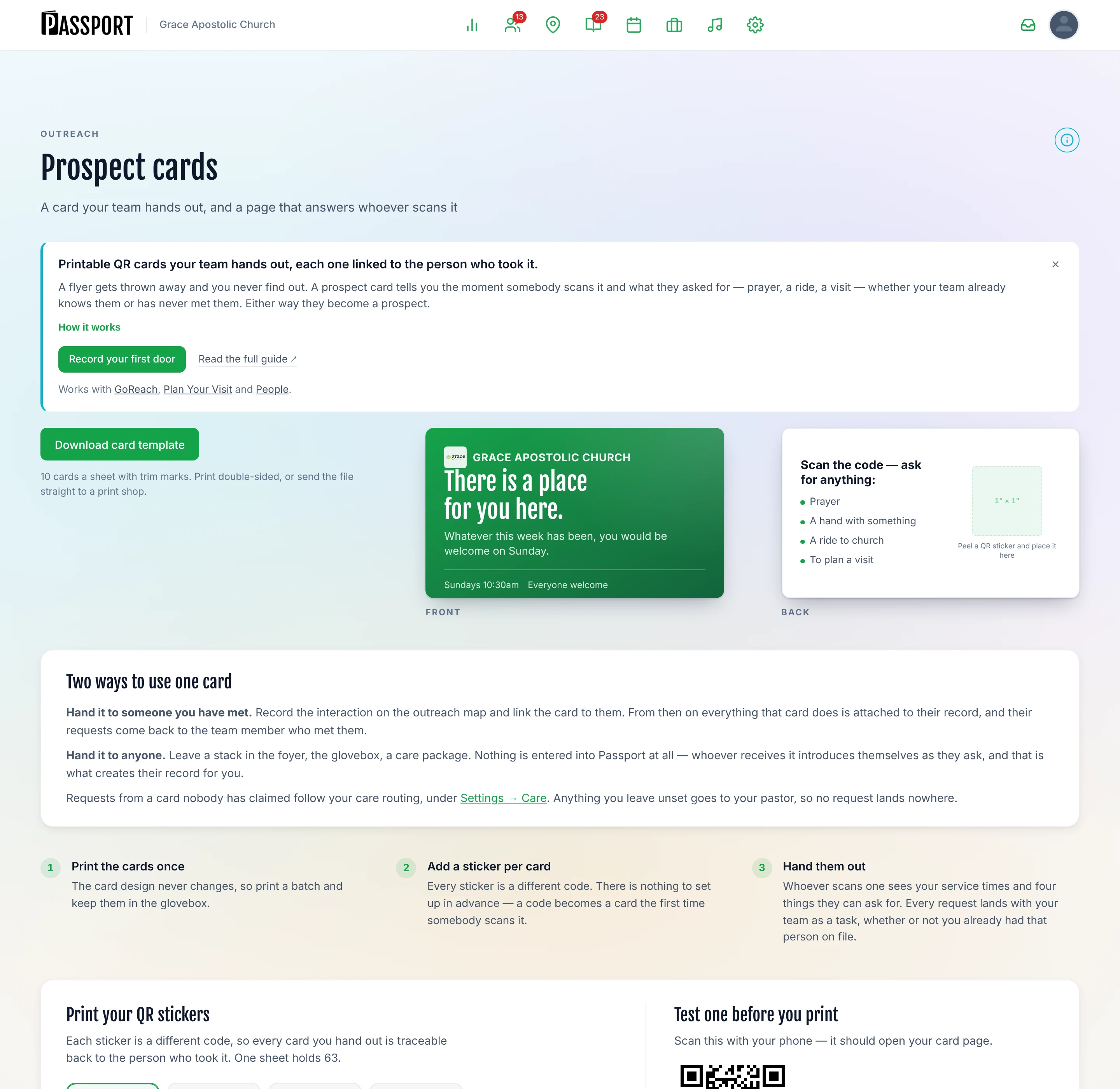
There are two things to print, and you can use either or both:
| What | Format | Use it for |
|---|---|---|
| Download card template | 10 cards a sheet, with trim marks | A proper handout card. Print double-sided, or send the file to a print shop |
| QR sticker sheet | 63 codes a sheet, on 1″ × 1″ labels | Sticking a code onto something you already have — a bulletin, a bag, a care package |
Choose how many sheets you want — 1, 2, 5 or 10. Every code is different, which is the whole point: each card can be traced back to the person who took it.
Scan the sample code on that page with your phone before you commit a sheet. It should open your card page. Label stock and printers vary more than you would expect, and it is a cheap thing to check with one code rather than the 630 a ten-sheet run gives you.
Print, cut, and give them out. There is nothing to set up beforehand — a code does nothing until somebody scans it, and comes to life the moment they do.
What a person sees when they scan
Your church name and logo, your service times, your address, and a phone number — followed by four things they can ask for:
| Ask | What happens |
|---|---|
| Prayer | A care assignment is created for your team, with their request |
| Help | Same, flagged as practical need |
| A ride | Same, flagged as transport |
| Plan a visit | Takes them to your Visit Page to pick a service |
Each request lands with your team as a task, attached to the card it came from. Who it lands with is set under Admin → Settings → Care — see where requests go below.
:::note "Plan a visit" only appears if you have a page That fourth option needs at least one main service time, since it offers real dates. Without one it is hidden rather than shown as an option that cannot be completed. :::
When somebody scans a card nobody has claimed
If the card has not been linked to anyone, the page asks for a first name and one way to reach them — a mobile number, or an email if they would rather. That is the whole form. Asking a stranger for a surname buys you nothing; you need to be able to reach them, not to file them.
That creates their record, so they arrive in Passport as a prospect with the request attached, exactly as if your team had written them up.
The first person to do this claims the card. From then on it is theirs: scanning it again on the same phone welcomes them back by name, and they can ask for something else without typing anything.
Cards get passed along, though, so every request has a quiet "Not you?" beside it. Somebody who was handed a card that already belongs to a friend can tap that, give their own details, and have their request filed under themselves — without taking the card off the person it belongs to.
:::note The card never shows a stranger who it belongs to A card is a physical object; anyone can pick one up off a table. The page only greets somebody by name on the phone they registered from. On any other phone it says the card is already registered and offers the same way out, without naming anyone. :::
Linking a card to a person
A card on its own is anonymous — it knows it was scanned, not who scanned it.
Link it to somebody when your team records the interaction on the outreach map. From then on, everything that card does is attached to that person's record, and their requests go back to the team member who met them rather than to your general care routing.
An unlinked card still works: whoever scans it introduces themselves as they ask, and you get both the person and the request.
Bible studies on a card
A prospect card can also serve self-paced Bible study modules — video, reading, and a short quiz — to somebody who has never set foot in the building and has no login.
This is the quietest and most useful thing prospect cards do. Someone who is curious but not ready to walk through a door can start anyway, and you can see how far they got.
Enable classes for cards under Admin → Settings → Classes.
Where requests go
A card linked to somebody your team met sends that person's requests back to the team member who met them. That is the promise the card makes, and it is kept.
Everything else follows your care routing, under Admin → Settings → Care. Set who handles each kind of request:
| Request | Typically |
|---|---|
| Prayer request | your prayer team |
| Ride request | whoever runs transport |
| Help needed | deacons, or a benevolence group |
| Visit follow-up | a pastor |
| Class interest | whoever teaches |
You can leave any of them unset. An unset row falls through to the catch-all, and the catch-all falls through to your pastor — so there is no way to configure this that leaves a request going nowhere.
Each row shows you who it is actually going to. If the person you picked leaves, or the ministry you picked has no leaders, the row tells you and the requests quietly fall back to your pastor rather than sitting in a queue nobody is watching.
This same routing covers your Visit Page, guest journey follow-ups, visitor automation, and portal self-declarations — not only cards.
What it costs you to run this
Cards are the cheapest thing in Passport to operate and the easiest to abandon, so it is worth being honest about the work.
Printing is one page at a time, 63 codes to a sheet. Plain card stock is fine; you do not need labels. A church handing out cards every week gets through a sheet or two a month.
Recording interactions is the part teams skip, and it is the part that makes the difference. A card handed out without a record still works — whoever scans it introduces themselves — but you lose the trail back to the person who gave it to them, and their request goes to your general care routing instead of to them. Ninety seconds on the outreach map at the door is the whole cost.
Answering is the real commitment. A card that produces a prayer request nobody responds to is worse than no card, because somebody asked and got silence. Decide who is watching Prospect Follow-Ups before you print the first sheet.
Common questions
Can I reprint the same code? No. The first person to use a code claims it, so a duplicate means the second person sees somebody else's card and has to tap "Not you?" to be heard properly. Print fresh sheets; they cost almost nothing.
Somebody scanned a card months later. That is fine — codes do not expire. The request arrives as normal.
Somebody scanned a card and never asked for anything. Also fine. A code that is scanned but never used is tidied up after ninety days, and nothing about it reaches your team in the meantime.
How do I know which team member handed out which card? Through the outreach record. If nobody recorded the interaction, the card is anonymous until somebody scans it and introduces themselves — at which point you have the person, but not who gave them the card. Recording it on the map at the time is what makes that trail work.
What about cards we printed before all this? They still scan, and linking one on the outreach map still brings it to life exactly as it always did. What they cannot do is let a stranger register themselves, because the code alone does not say which church it belongs to — that is what the web address in the newer codes is for. Cards you print from now on do both.
Next steps
- Give them somewhere to land — The Plan a visit button opens your Plan Your Visit page.
- Work what comes back — Requests become tasks in Prospect Follow-Ups.
- When they turn up — They appear in the Guests hub like any other guest.