Visitor Connection Card
The Visitor Connection Card lets first-time guests fill in their contact information from any phone or tablet — no paper forms, no lost slips. When a guest submits the card, Passport creates their person record and gives them a personal portal link.
What you need
- Admin access to Passport
- A screen, phone, or tablet guests can use at the welcome table or lobby kiosk
Get your church's QR code
- In Passport, open People in the main navigation.
- Select Connection Card.
- The page displays your church's QR code. Print it or display it on a screen at your welcome area.
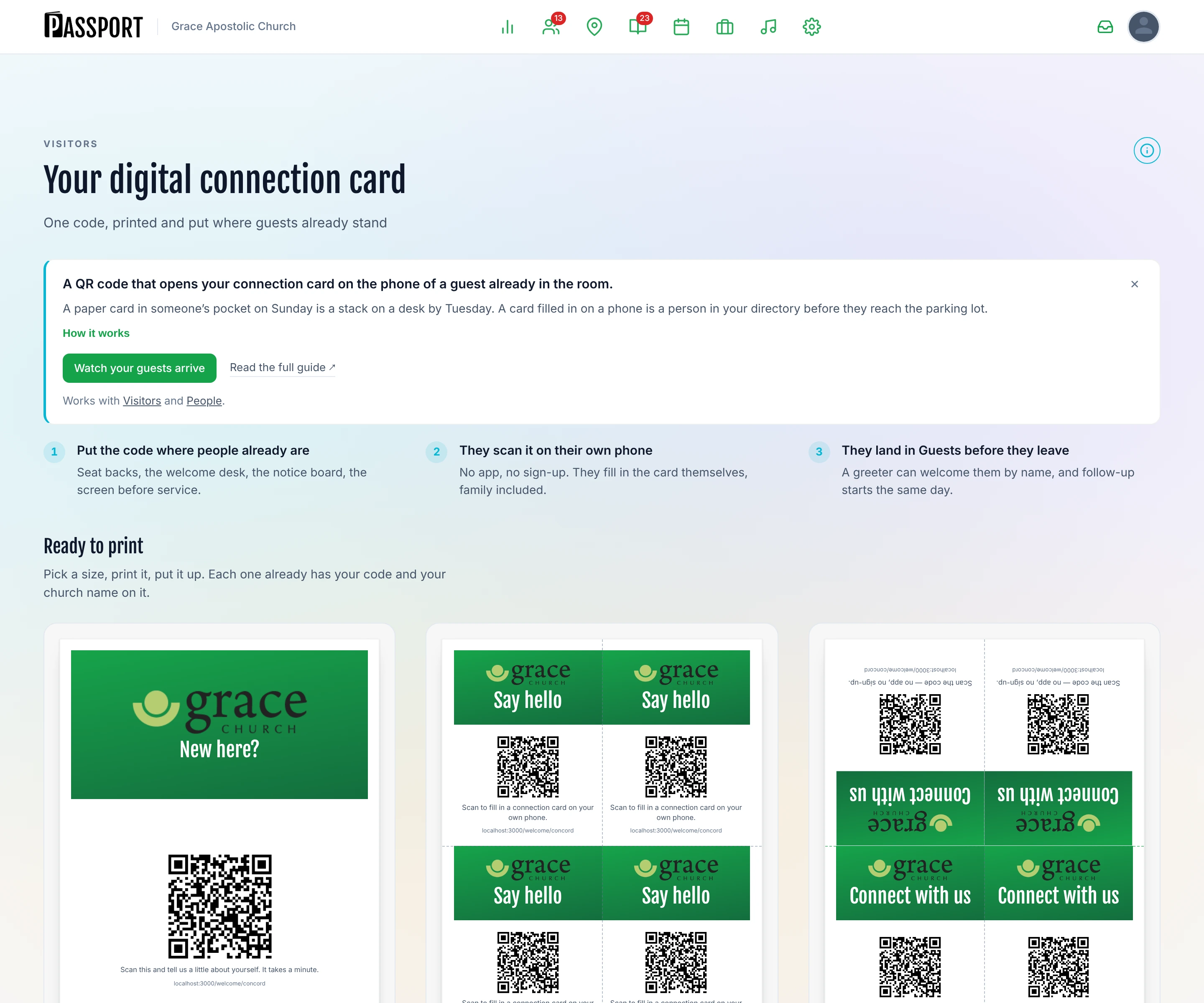
Guests scan the QR code and the connection card opens in their browser — no app download required.
:::tip Sharing the link directly The same page shows a copy-able URL you can paste into a bulletin, email, or welcome screen slide.
Once you have chosen a link for your Plan Your Visit page, the connection card uses the same one — yourchurch.passport.church/welcome/graceriver. That is short enough to read out from the front, print on a card, and type by hand.
Older QR codes carry a long id instead of your link. They keep working, so there is nothing to reprint — but any code you download from now on will use the readable form. :::
What guests experience
The connection card walks each guest through three short steps.
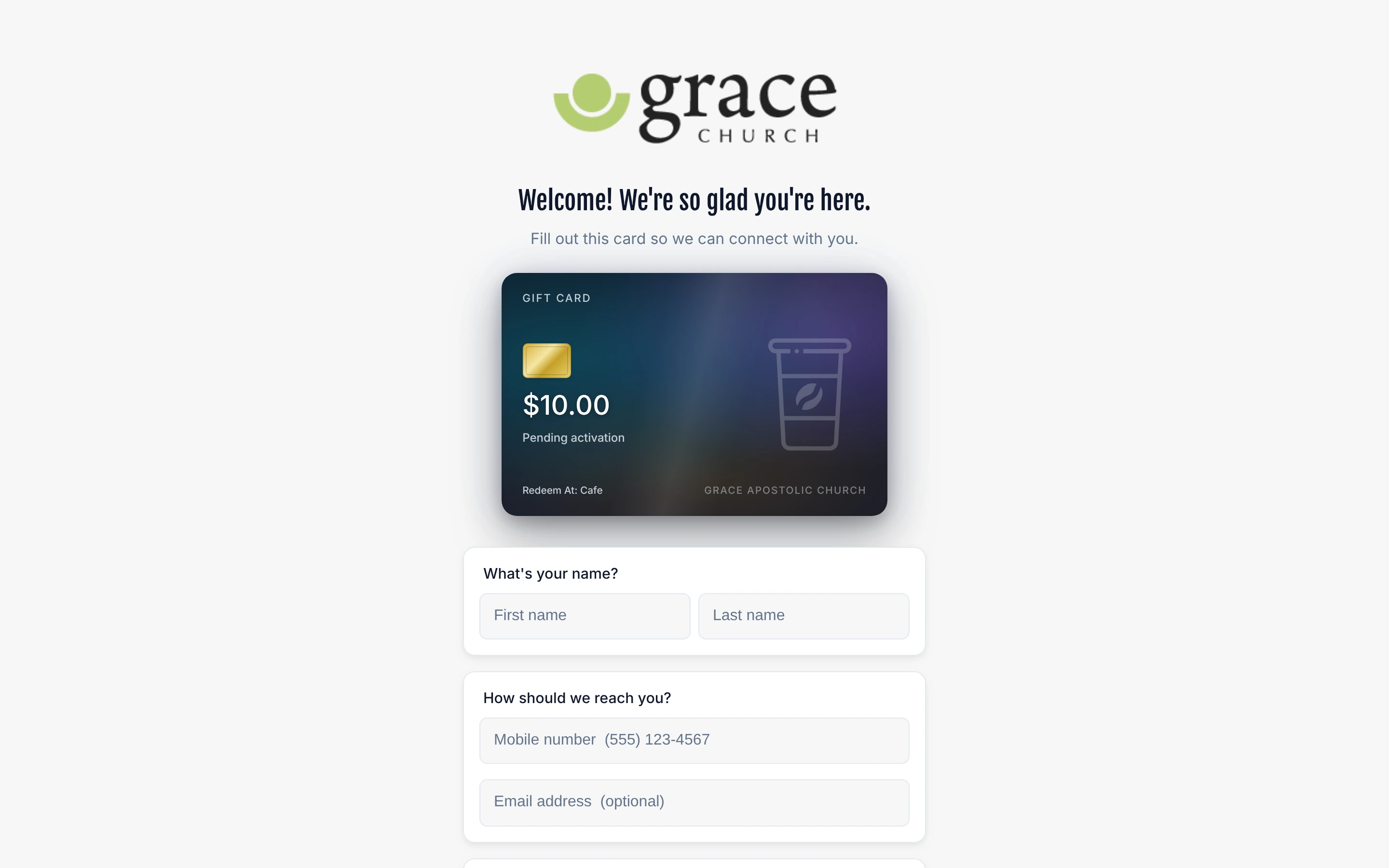
Step 1 — Contact information
Guests enter:
- First name and last name
- Phone number
- Email address
- How often they attend (First visit / I've been a few times / I attend regularly)
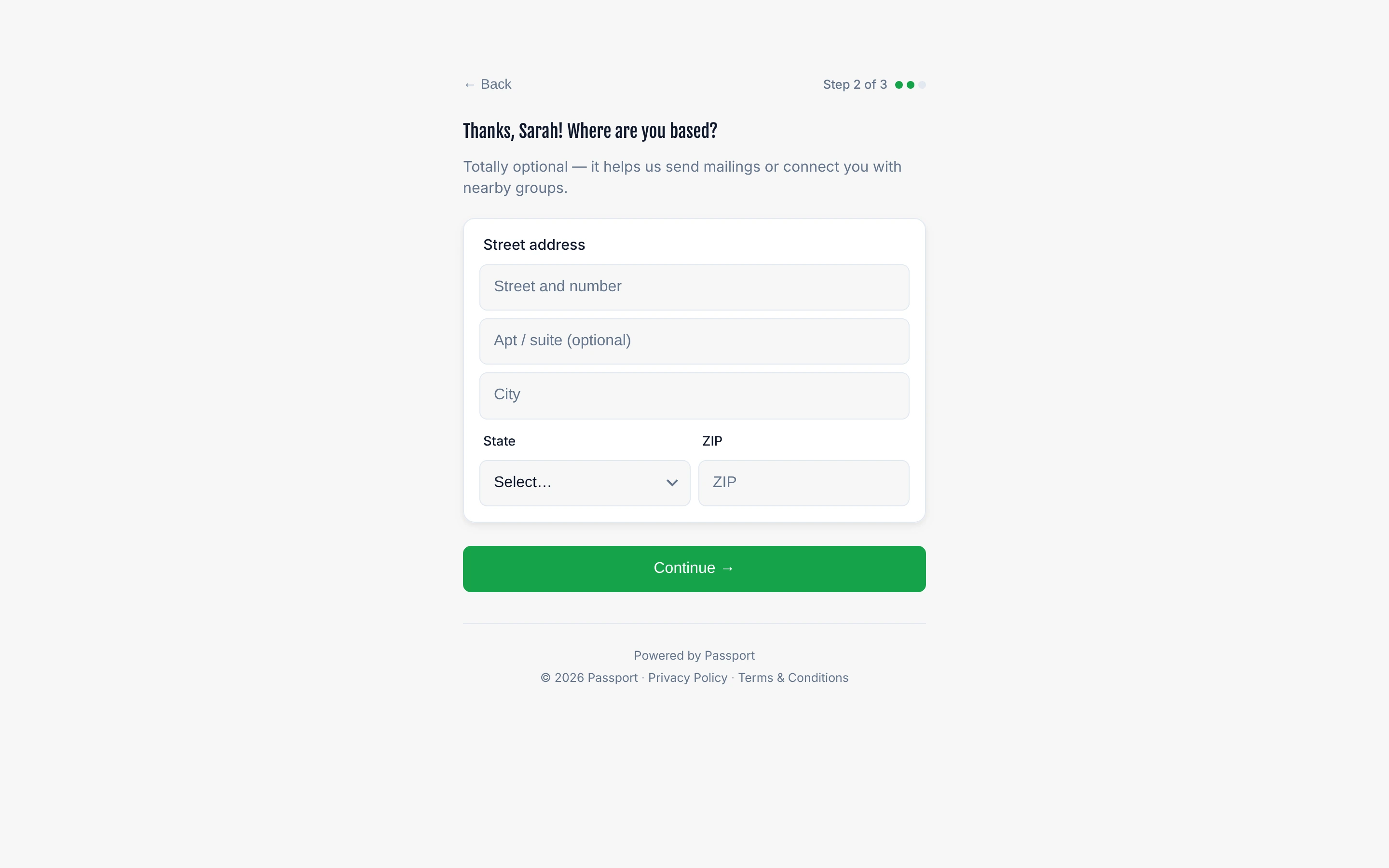
Step 2 — Address
Guests enter their home address. This step is optional — guests can tap Next to skip.
Step 3 — Family and referral
Guests indicate who they came with:
- Just me
- Me and my spouse
- Me and my kids
- Me, my spouse, and my kids
If they brought a spouse or children, they enter first and last names for each family member.
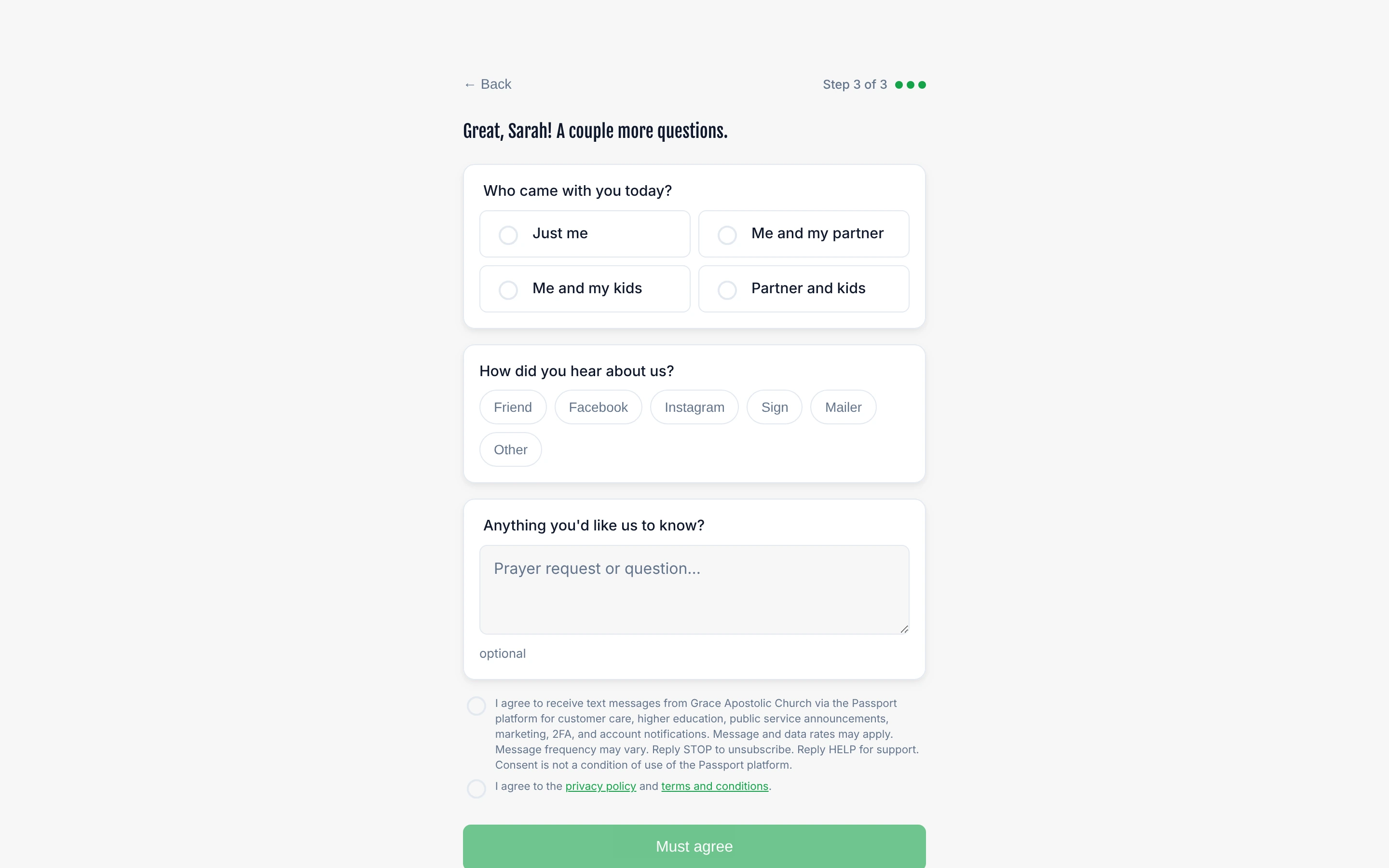
Guests also choose how they heard about the church (Friend, Facebook, Instagram, Sign, Mailer, or Other) and can leave a short comment.
Thank-you screen
After submitting, guests see a thank-you message. Depending on your church's settings, this screen may also show:
- An offer to sign up for a Bible study class
- A gift card or store credit, if your church has them switched on
View today's new visitors
- In Passport, open People → Visitors.
- Stay on the Today tab.
- Everyone who submitted a connection card that day appears under Walk-ins, alongside the guests who planned ahead.
From here you can message a guest, assign care, or open their profile.
What happens when a guest submits
- Passport creates a Visitor person record for the guest (and any family members they listed).
- The guest receives a unique portal link — they can use it to explore the Member Portal, see upcoming events, or connect with groups.
- If the guest already exists in Passport (matched by phone or email), their existing record is updated rather than duplicated.
Next steps
- Follow up quickly — guests who hear from the church the same week are far more likely to return. Use Pastoral Care to assign follow-ups.
- Configure the membership path — once a guest starts attending, the Visitor-Member Path defines how Passport tracks their journey toward membership.