Pastoral Care
The Pastoral Care tools help your team record visits, track follow-up needs, and distribute care work across staff, ministries, and groups — all tied to the people in your directory.
There are three connected tools:
| Tool | What it does |
|---|---|
| Pastoral Visits | Record a visit or call for one person and mark whether follow-up is needed. |
| Care Assignments | Assign follow-up tasks to staff members, a ministry, or a group. |
| Pastoral Care Dashboard | See all visits across your church, filtered by date range and visit type. |
Log a pastoral visit
A pastoral visit is any meaningful care contact — a home visit, hospital call, phone check-in, video chat, or other interaction.
- Open the person's profile (People → search or browse → select their name).
- Scroll to the Pastoral Visits panel on the profile.
- Click Log Visit.
- Fill in the form:
- Visit type — Home, Hospital, Phone, Video, or Other.
- Visit date — Required. Defaults to today.
- Notes — Optional. What happened, how the person is doing, prayer requests.
- Follow-up needed — Check this if someone should follow up with the person. Passport will automatically create a care assignment assigned to you.
- Click Log Visit.
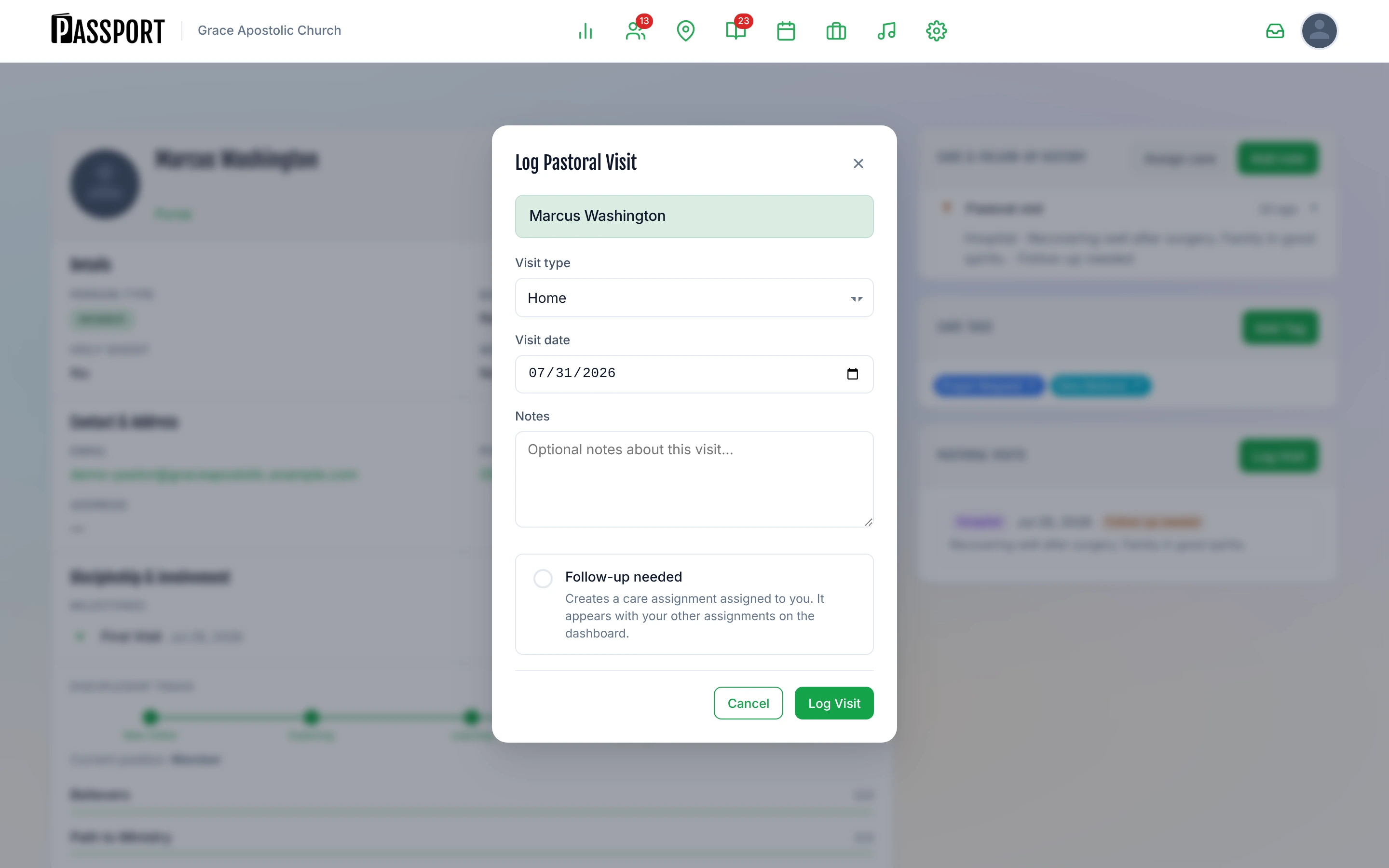
The visit appears in the Pastoral Visits panel on the profile, ordered by date. If you checked Follow-up needed, a new care assignment is created and will appear in your Care Assignments dashboard.
If the automatic care assignment fails to save, Passport displays a warning. You can add the care assignment manually from the person's profile or from the Care Assignments panel.
Care Assignments
Care assignments are follow-up tasks for a specific person. They can be assigned to a staff member, a ministry, or a group, and they can be claimed by individuals when assigned to a ministry or group pool.
View your assignments
The Care Assignments panel appears on every page that shows follow-up work (such as the Outreach or Grow dashboards). It has three tabs:
| Tab | Shows |
|---|---|
| My Assignments | Tasks directly assigned to you, or tasks you have claimed from a pool. |
| Assigned by Me | Tasks you created and delegated to others. |
| Available | Tasks assigned to a ministry or group that are open for any member to claim. |
Toggle Show Completed to include finished assignments in the view.
Create a care assignment
You can create a care assignment for any person in your directory.
- Click New Care Assignment in the Care Assignments panel.
- Step 1 — Who is this for? Search for the person by name, email, or phone. Select them.
- Step 2 — Who handles it? Choose where to route the assignment:
- Staff — Search for a specific staff member by name.
- Ministry — Route to a ministry team; any member of that ministry can claim it.
- Group — Route to a small group; any member of that group can claim it.
- Step 3 — Add details. Write a note describing what needs to be done. Set an optional deadline date.
- Click Create Care Assignment.
The assignment appears immediately in the appropriate tab. If you assigned it to yourself, it appears in My Assignments. If you routed it to a ministry or group, it appears in Available until someone claims it.
Claim an assignment
When an assignment is routed to your ministry or group:
- Go to the Available tab in Care Assignments.
- Find the assignment and click Claim.
The assignment moves to your My Assignments tab and is removed from the Available pool.
To release an assignment back to the pool, open it and click Unclaim.
Complete or remove an assignment
- Complete — Click Done on an active assignment. A brief confirmation animation plays, then the assignment moves to your completed history.
- Remove — Click Remove (or Cancel) and confirm. This permanently removes the assignment. Use this only if the assignment was created in error.
Reassign an assignment
If you need to move an assignment to a different person or team:
- Find the assignment in the Assigned by Me tab.
- Click Reassign.
- Choose the new assignee (staff, ministry, or group).
Pastoral Care Dashboard
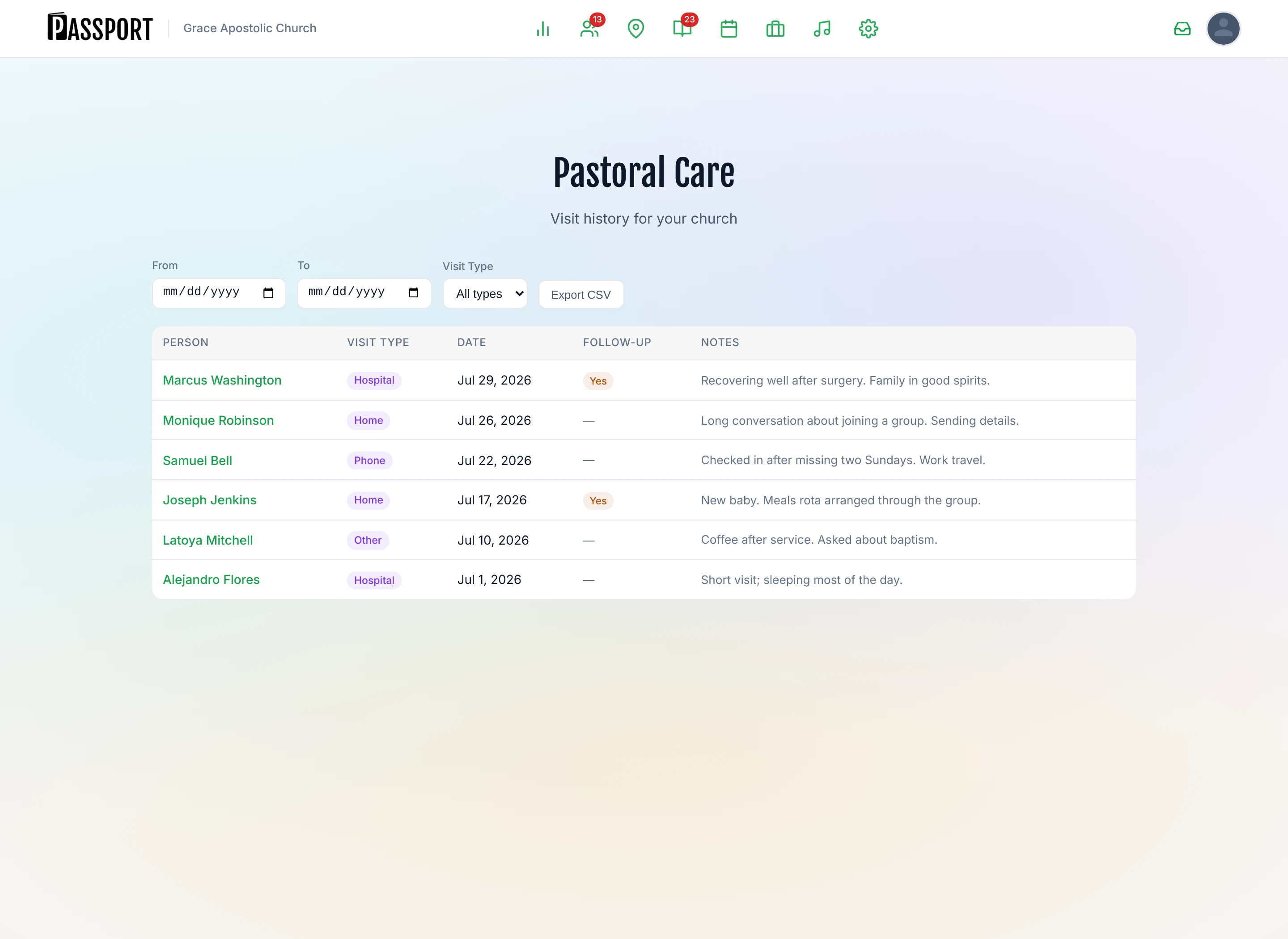
The dashboard gives admins and leaders a church-wide view of all recorded pastoral visits.
- Go to Grow → Pastoral Care in the main navigation (or navigate directly to
/admin/pastoral-care). - Use the filters to narrow the list:
- From / To — Filter by visit date range.
- Visit Type — Home, Hospital, Phone, Video, or Other.
- Click any person's name to open their profile.
Export to CSV
Click Export CSV to download the filtered visit list. The export includes person name, visit type, date, whether follow-up was needed, and notes. Use this for reporting, care team reviews, or pastoral records.
Privacy guidance
Pastoral visit notes and care assignment details contain sensitive personal information. Keep the following in mind:
- Share pastoral notes only with staff who have a direct care responsibility for the person.
- Use the Notes field for care context, not for permanent medical records.
- When exporting to CSV, store and share the file only through secure, church-approved channels.
- If a person requests that their care history be removed, contact your church admin.