Visitor-Member Path
The Visitor-Member Path is how Passport tracks someone's journey from first-time guest to committed church member. You define the rules; Passport handles the movement automatically where you want it to, and gives you control where you don't.
How the path works
Every person in Passport has a type that reflects where they are in their relationship with the church:
| Type | Who it describes |
|---|---|
| Prospect | Someone you are following up with — not yet attended a service. Includes anybody who has only been to a community event |
| Visitor | Attended at least once |
| Attendee | Returning regularly, not yet a formal member |
| Member | Formally recognized as a church member |
People move through these stages as they attend services and meet the criteria you configure.
These four types are defined once, in full, in the Glossary. This page is about the rules that move somebody between them. Note that a person's type is only half the picture — they also carry a derived guest stage, and the two answer different questions.
Configure the path
Go to Settings and select the Membership Path tab.
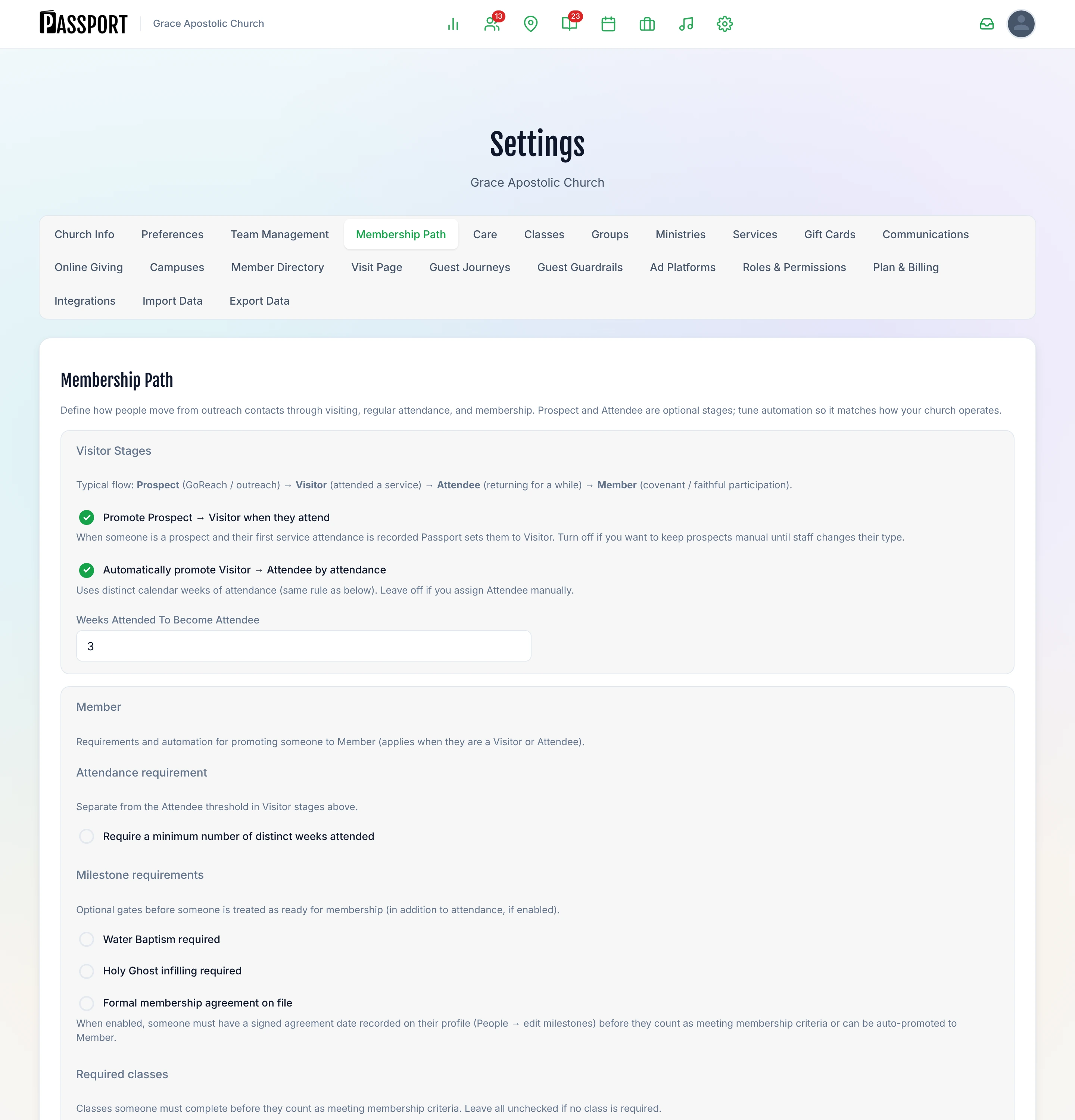
Visitor stages
These settings control the early part of the journey.
Promote Prospect → Visitor when they attend When this is on (the default), Passport automatically changes someone from Prospect to Visitor the first time their attendance is recorded at a service. Turn it off if your team prefers to move prospects to visitors manually.
Automatically promote Visitor → Attendee by attendance When this is on, Passport promotes a Visitor to Attendee after they attend a set number of distinct calendar weeks. Enter the number of weeks in the Weeks attended to become Attendee field that appears.
Leave this off if your team assigns the Attendee status manually, or if you don't use the Attendee stage at all.
Member criteria
These settings control what someone must do before Passport considers them ready for membership.
Attendance requirement
Check Require a minimum number of distinct weeks attended and enter a number. Passport counts the number of separate calendar weeks in which attendance was recorded — attending twice in one week still counts as one week. This threshold is separate from the Visitor → Attendee threshold above.
Milestone requirements
You can require any combination of the following before someone is eligible for membership:
- Water Baptism required — the person's baptism must be recorded on their profile.
- Holy Ghost infilling required — the person's Holy Ghost infilling must be recorded on their profile.
- Formal membership agreement on file — a signed agreement date must be recorded. Staff record this under People, open the person's profile, and edit their milestones.
Self-declaration
When Allow visitors to self-declare as members is on, a visitor can notify the church from their portal that they believe they are ready for membership. Admin approval is always required — this creates a review task for your team. The visitor is not changed to Member until a staff member approves.
Auto-upgrade to Member
When Automatically promote to Member when all criteria are met is on, Passport sets the person's type to Member as soon as every enabled criterion is satisfied. You receive a daily digest listing everyone who was auto-promoted that day.
Auto-upgrade acts on criteria recorded in Passport. Requirements you handle outside of Passport — such as membership classes or covenant signing ceremonies — are not tracked automatically. Make sure milestones are recorded before turning on auto-upgrade.
What members and visitors see in the portal
When a visitor or attendee opens their Member Portal, the Home tab shows their membership progress:
- A progress bar showing how far along they are.
- Their next step (for example, "Attend 2 more services to qualify" or "Complete water baptism").
- If self-declaration is enabled, a button that lets them notify the church they are ready.
Members see their membership status confirmed and their journey milestones as achievements.
Tips for getting started
- Start simple. Turn on the path with just the attendance requirement. Add milestone gates once your team is comfortable reviewing records.
- Check your attendance recording. Auto-promotion only works when service attendance is actually recorded in Passport. Make sure your check-in or attendance workflow is active.
- Keep milestones current. Baptism and Holy Ghost records on the People profile are what Passport reads. If they aren't recorded, criteria won't be met even if the event happened.
- Use self-declaration for pastoral outreach. Each self-declaration creates a task — it's a low-friction way for motivated attendees to raise their hand without calling the church office.
Next steps
- Watch people move — The Growth Pipeline Report shows where people stall.
- Require a class — Classes can be part of your membership criteria.
- What members see — Their progress appears on the Home tab of the Member Portal.