The Passport App
The Passport app is the phone version of the Member Portal — the same six areas, with push notifications, and a separate Team View for staff.
What you need
- An iPhone or an Android phone
- A phone number that matches the one on your record in Passport
Getting the app
Search for Passport in the App Store or on Google Play, or send members a link from Admin → Settings → Church Info.
Members sign in with their phone number — no password. Passport texts a code, they type it in, and they are in. If the number they enter does not match a record, they are asked to register instead, which creates a person your team can then match up.
:::note One app, whoever you are There is only one Passport app. What a person sees depends on who they are: a member sees the six member tabs, and a staff member can additionally switch into Team View. :::
What members see
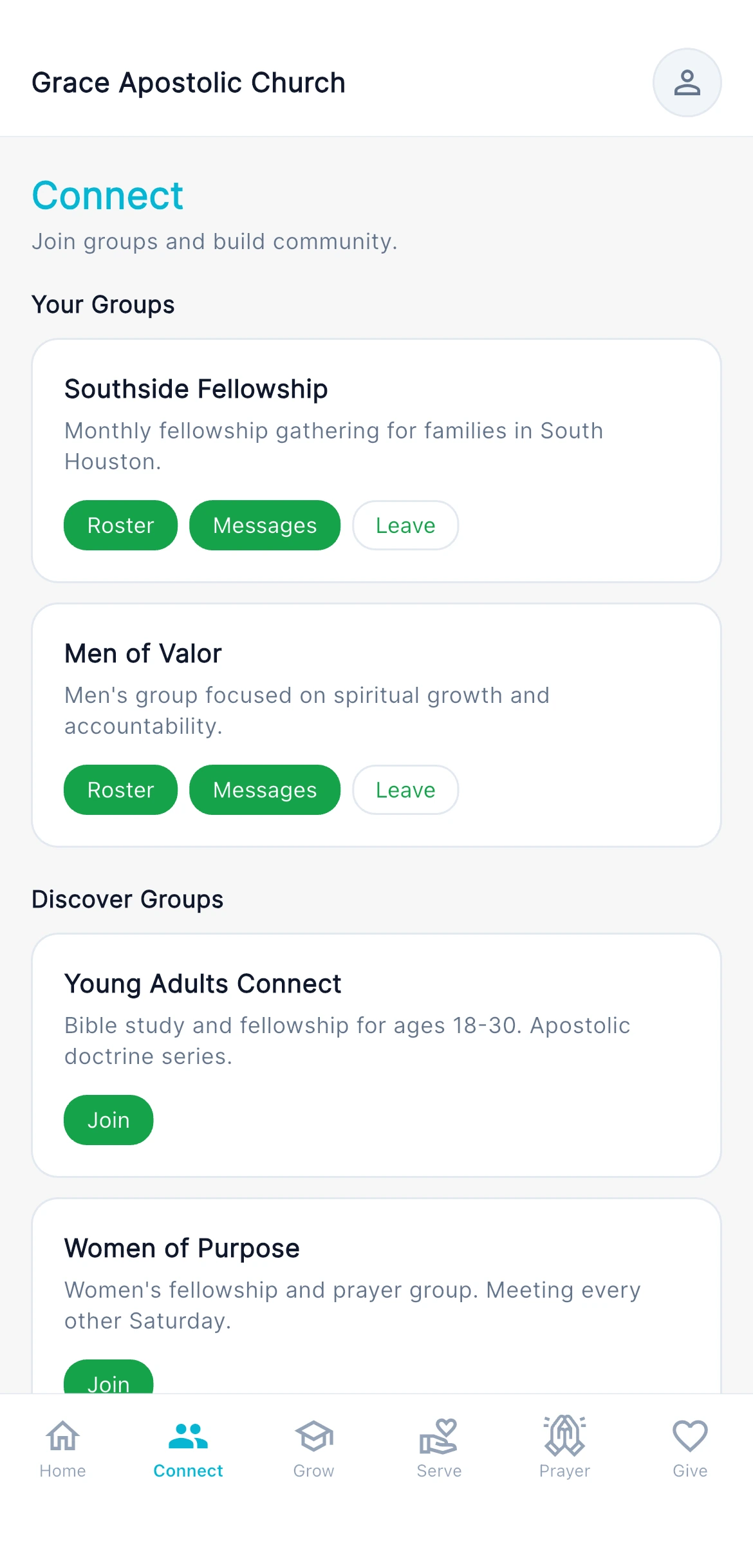
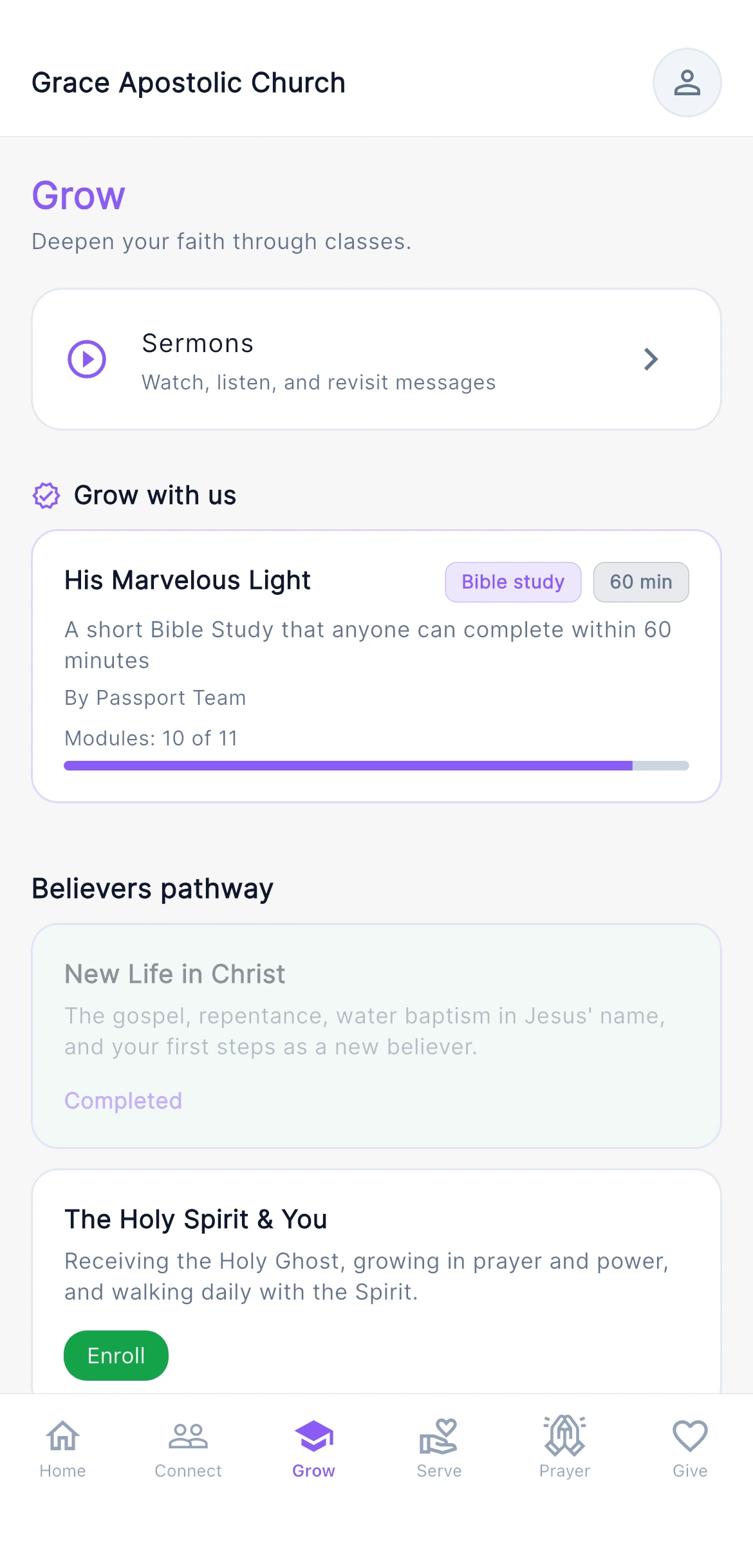
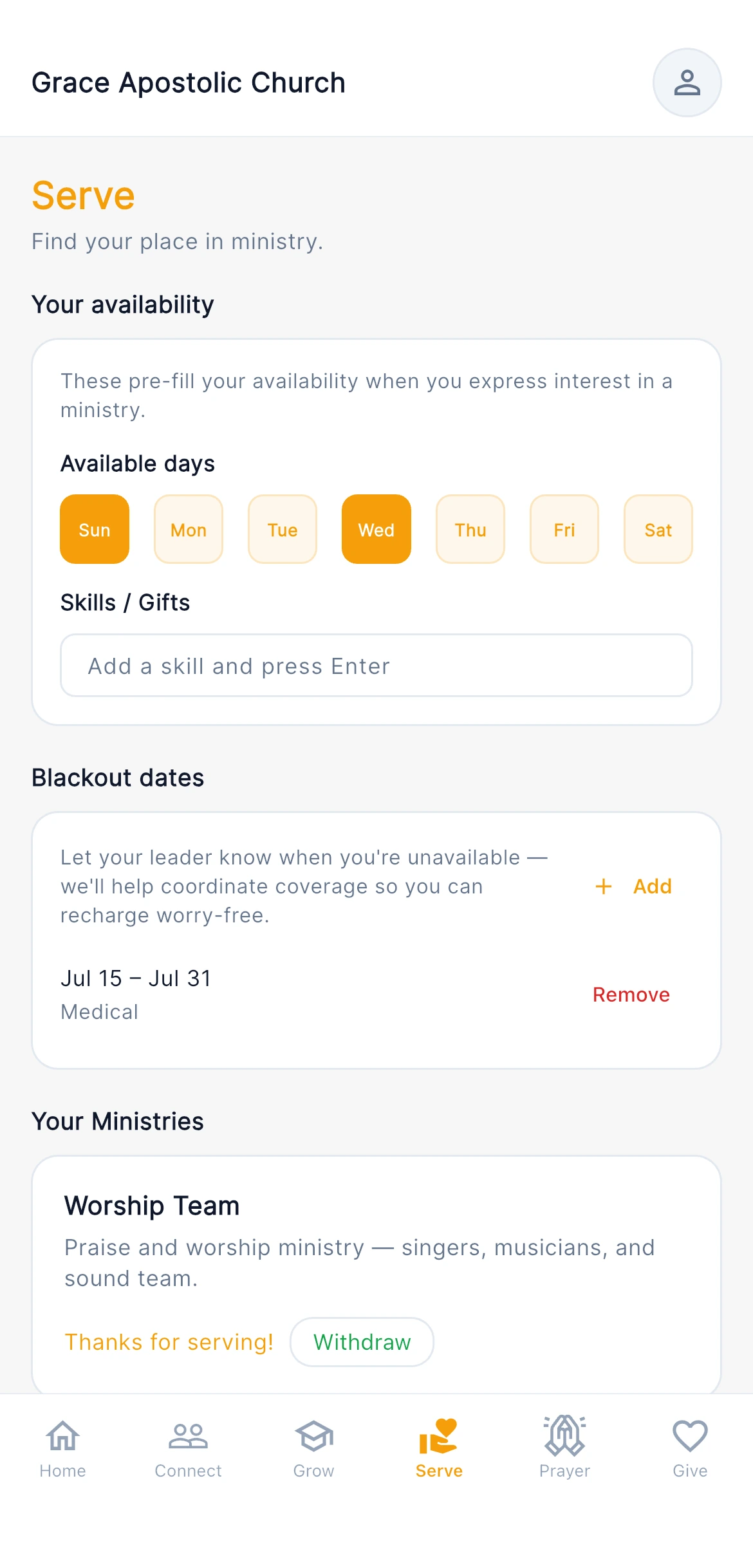
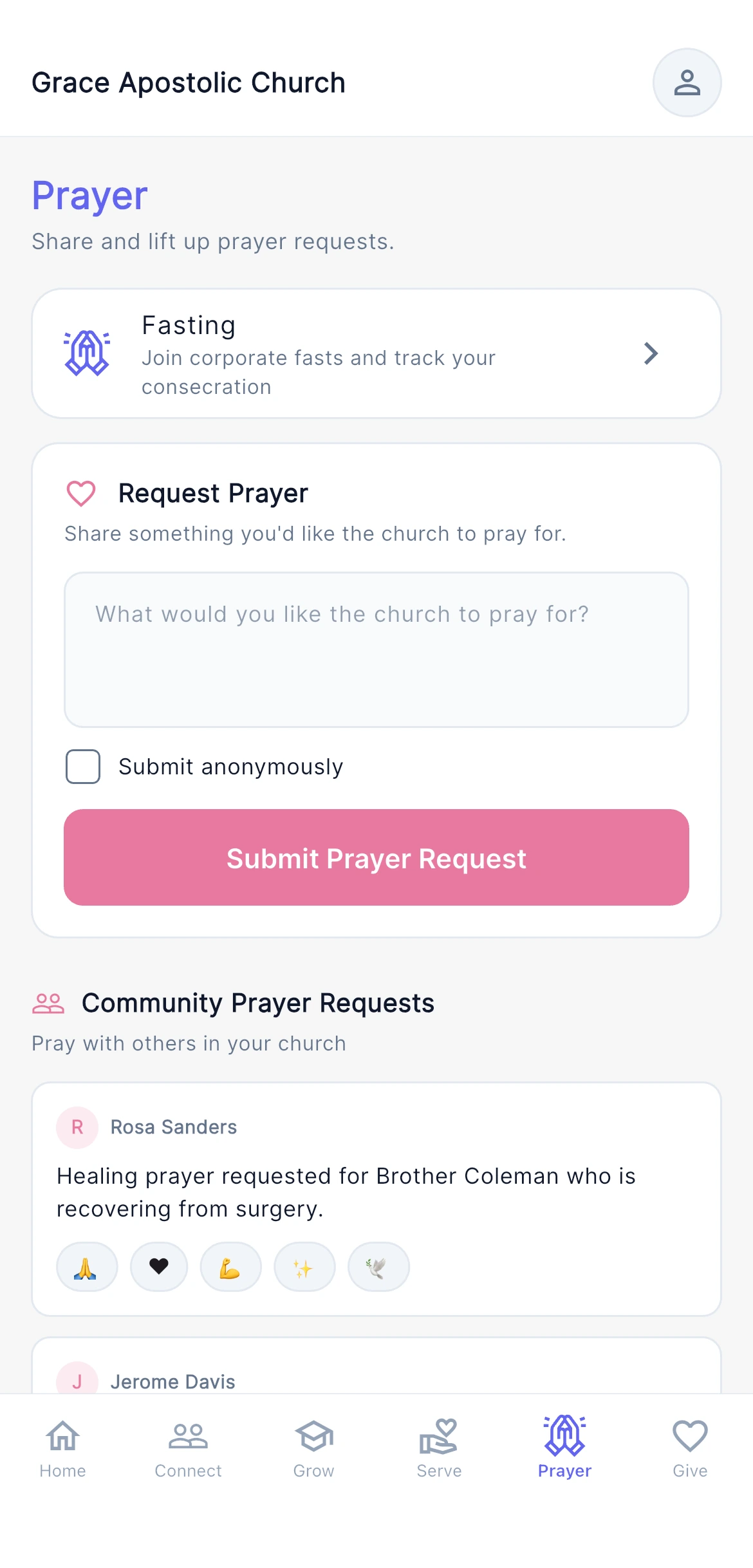
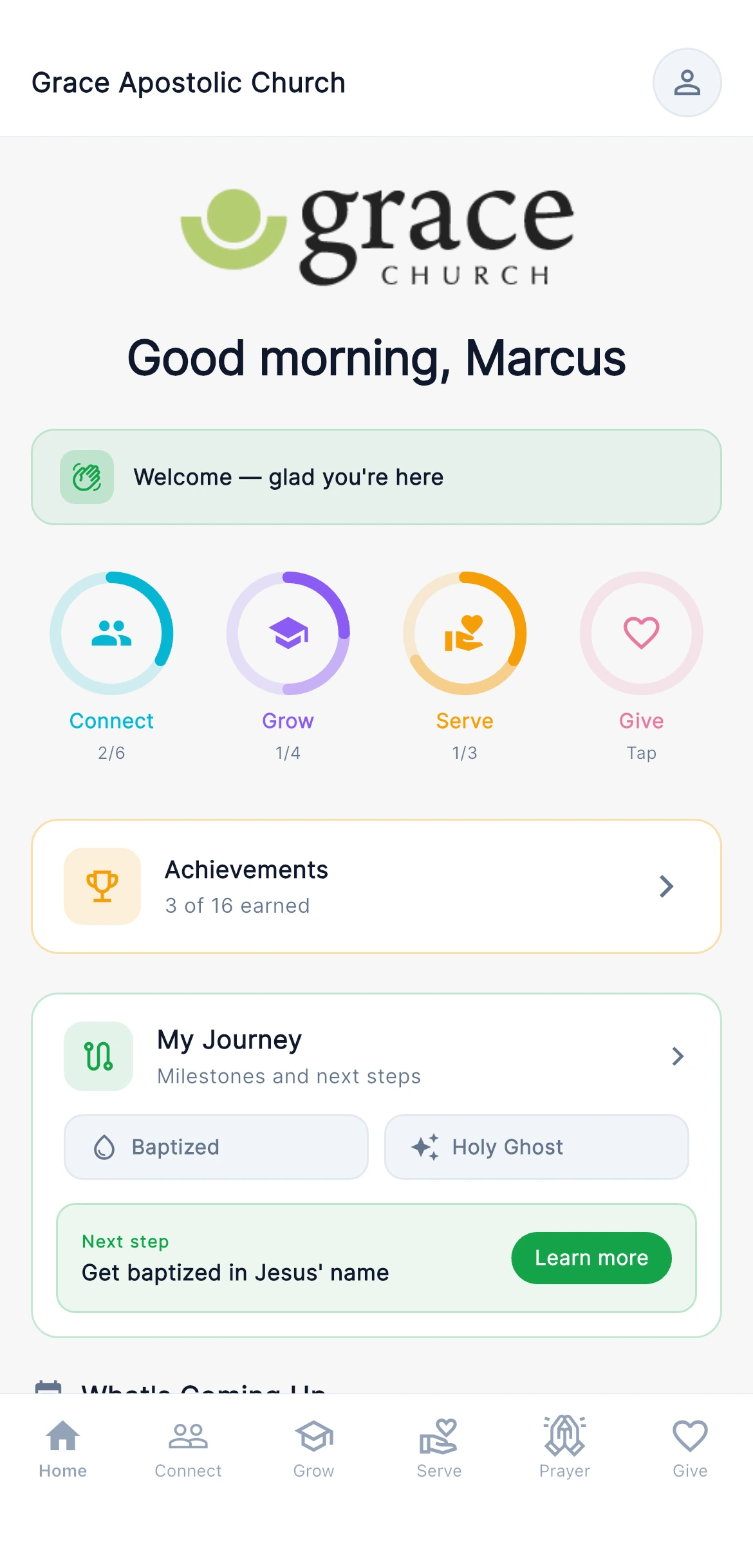
The same six areas as the web portal, so anything set up for one works in the other:
| Tab | What it is |
|---|---|
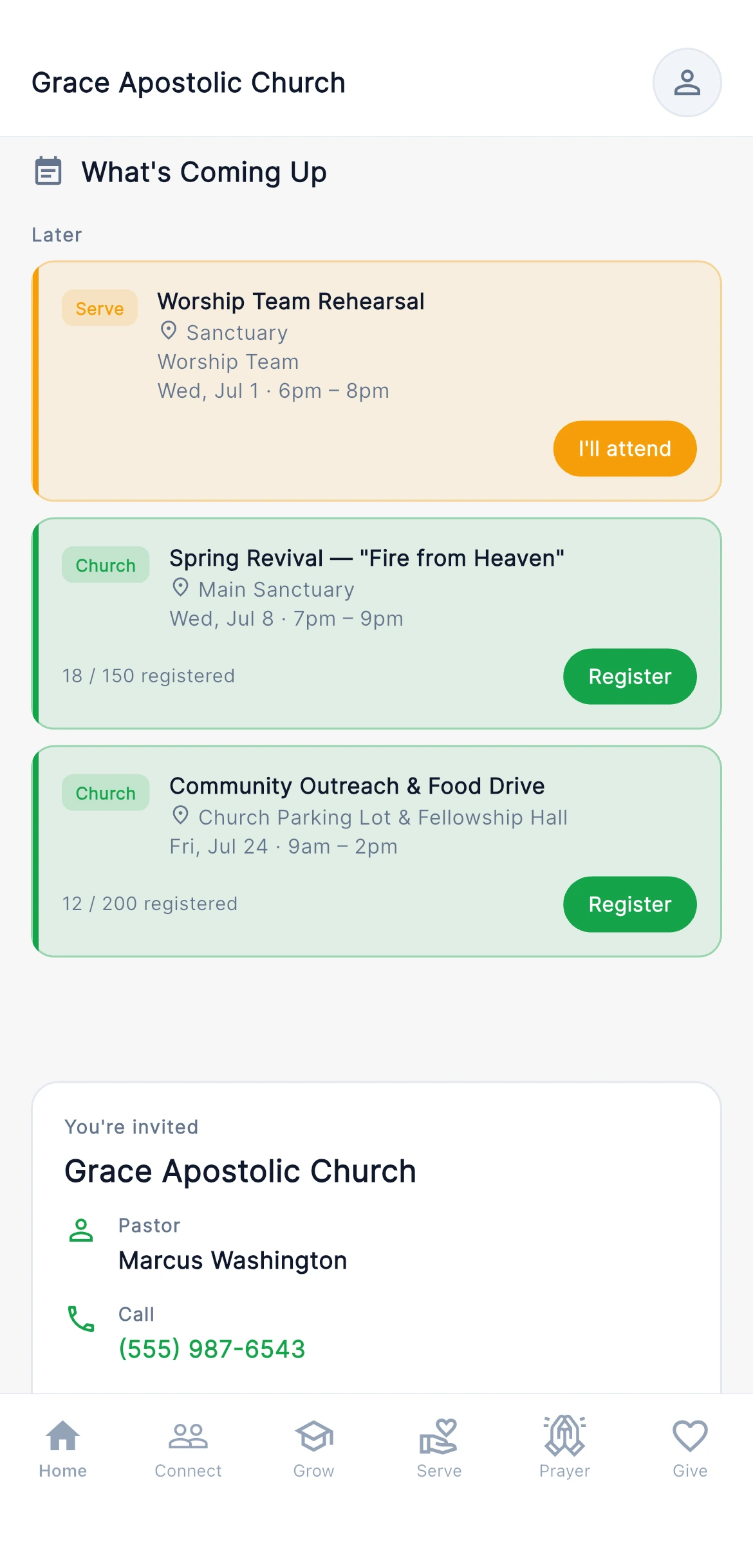
| Home | Their profile, milestones, and what is on this week |
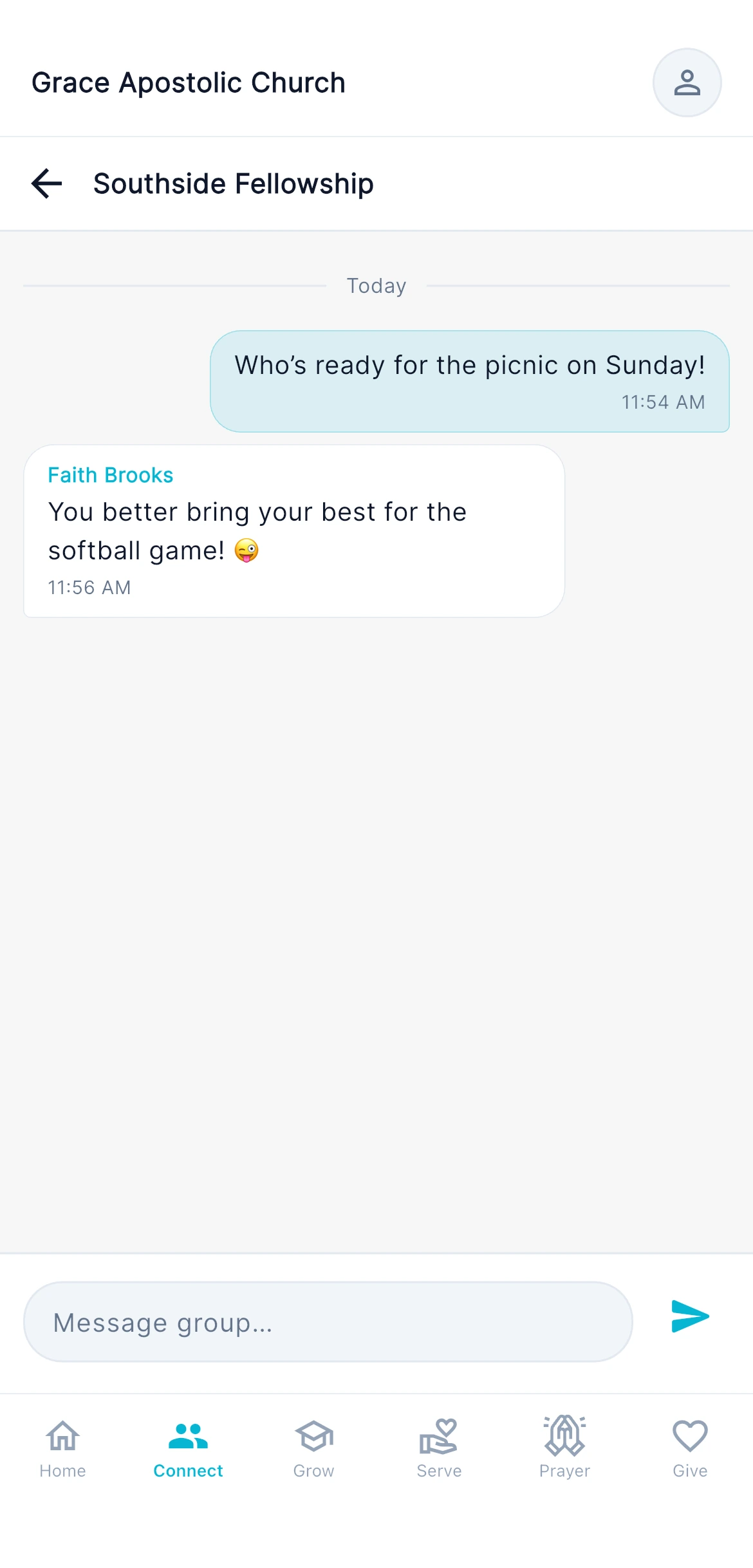
| Connect | Their groups, and group chat |
| Grow | Classes and their membership progress |
| Serve | Ministries they serve in, and their schedule |
| Prayer | The prayer wall, and submitting a request |
| Give | Giving history and recurring gifts |
For what each tab actually does, see the Member Portal — the app does not differ.
What the app adds
- Push notifications — a group message, a schedule change, or a prayer request arrives as a notification rather than waiting to be found. Members choose which they want under Settings → Notifications.
- Face or fingerprint unlock — available under Settings → Security.
- Their passport QR — always in their pocket, so check-in does not depend on remembering a card.
Team View
Staff and leaders can switch into Team View — the field version of the admin tools, built for someone standing up rather than sitting at a desk.
| Tab | What it is |
|---|---|
| Dashboard | This week at a glance |
| People | The directory, searchable, with full profiles |
| Check-in | Take attendance from your phone |
| Care | Your care assignments, with call and text buttons |
| Inbox | Reply to guests and members |
| GoReach | Outreach in the field — capture interactions, scan prospect cards, see who is nearby |
Team View appears only for people whose Passport record is marked as staff, and asks them to confirm who they are before it opens. A banner offers to resume Team View next time.
Nearby View is the one feature that exists only here — it uses the phone's location, so there is no web equivalent.
:::tip Outreach works better on a phone Knocking doors with a laptop is not realistic. Capturing an interaction, scanning a prospect card and logging a follow-up are all faster in Team View than in the web app. :::
What the app does not do
Admin work stays on the web: settings, imports, form building, giving administration, and worship planning. The app is for the things you do while moving around — the web app is for the things you do sitting down.
Common questions
| Question | Answer |
|---|---|
| A member says the code never arrives | Check the phone number on their record matches the one they are entering, including area code. |
| Someone signed in but sees no groups | They are signed in as a person with no group memberships. Check their record under People. |
| A staff member has no Team View | Their person record is not marked as staff. Fix it under Admin → Settings → Team Management. |
| Do members need the app? | No — the portal works in any phone browser. The app adds push notifications, biometric unlock, a passport QR that works without a signal, prospect-card scanning, and the weekly summary, so it is worth recommending even though nothing requires it. |
Next steps
- What each tab does — the Member Portal covers the member side in full.
- Turn on the right alerts — Group Message Notifications.
- Use it in the field — Reach your community.