For Volunteers
Volunteers never make an account. There is no sign-up, no password, and nothing to download. A request arrives on their phone, they tap yes or no, and that is the whole obligation.
This page is what your team sees, so you know what you are asking of them before you ask. It is also worth sending to a ministry leader who is nervous that "a new system" means teaching sixty people to log in to something.
What you can do
- Volunteers confirm or decline a request from a link, with no login at all.
- Volunteers see the order of service and who else is on, in the member portal or the app.
- Volunteers take an open slot themselves, in either.
- Ministry leaders stop chasing people by text on Saturday night.
The request link — no login, no account
When you ask your team, each person gets a message carrying two links — one to confirm, one to decline. Either one opens a single page with the service, the date, the team, and the job on it, and the one button that answers the way they tapped.
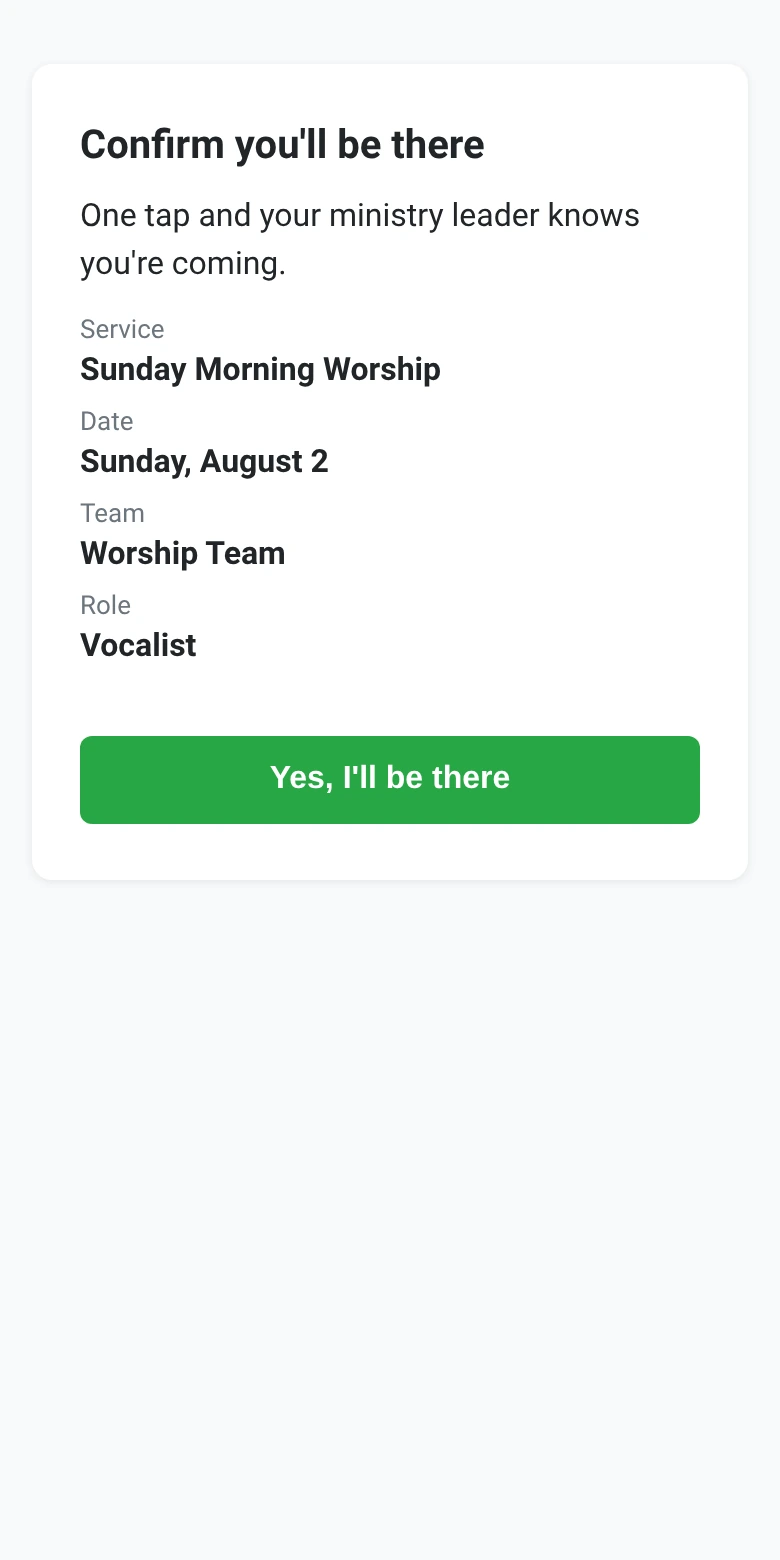
Confirm and they are done. Decline and they are asked for a reason before it submits, which is what turns a gap in your roster into something you can act on.
Three things worth knowing about the link:
- It needs no credentials. The link itself is the proof it is them. There is nothing to remember and nothing to reset.
- It is scoped to one shift. The link answers exactly one request. It is not a way into anybody's records, so a forwarded email cannot expose anything beyond that one date and role.
- It expires the day after the service. An old email in somebody's inbox stops being a live button.
:::note Nothing happens just because the link was opened Confirming and declining are actions on the page, never a consequence of the link being visited. Corporate mail scanners follow every link in every email before a human sees it, and if opening the link confirmed the shift, half your team would be marked as coming without knowing it. :::
The member portal — more, still no password
The member portal is where a volunteer sees everything rather than one shift at a time. They reach it from their own portal link — the link itself is what identifies them, so there is no password, no code to wait for, and still no account. (The app is the one that asks for a phone number and texts a code back; on the web it is the link.)
The Serve tab has:
- Upcoming assignments, each with Confirm and Decline. Declining offers the usual reasons — sick, out of town, schedule conflict, no longer available — with room to type something else.
- See the plan on any assignment whose plan has been published.
- Open spots they are eligible for.
- My ministries, and a way to express interest in others.
- Their volunteer profile — which days they can serve, their skills, and blackout dates for up to six months ahead.
Blackout dates are the ones worth pointing people at. A volunteer who enters a fortnight away in July will not be scheduled for it, and nobody has to remember the conversation.
Seeing the plan
See the plan shows the published order of service: what happens in what order, the songs with the key you are doing them in, the call time, and who else is serving.
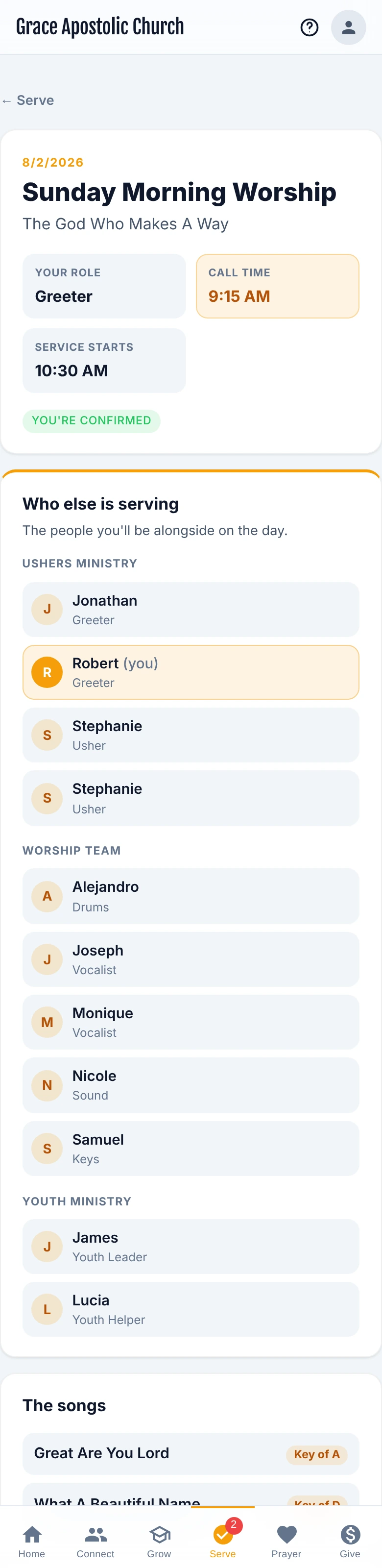
Planner-only notes are removed before it is sent. The sermon outline and anything else marked for planners never reaches this screen — that separation is what makes it safe to show a plan to the whole team. See Planning a Service for how notes get marked.
A plan that is still a draft is not visible here at all. Volunteers see their assignment, but no order of service, until you publish.
Claiming an open spot
Volunteers see unfilled positions for the next six weeks, limited to ministries they are already on, and can take one.
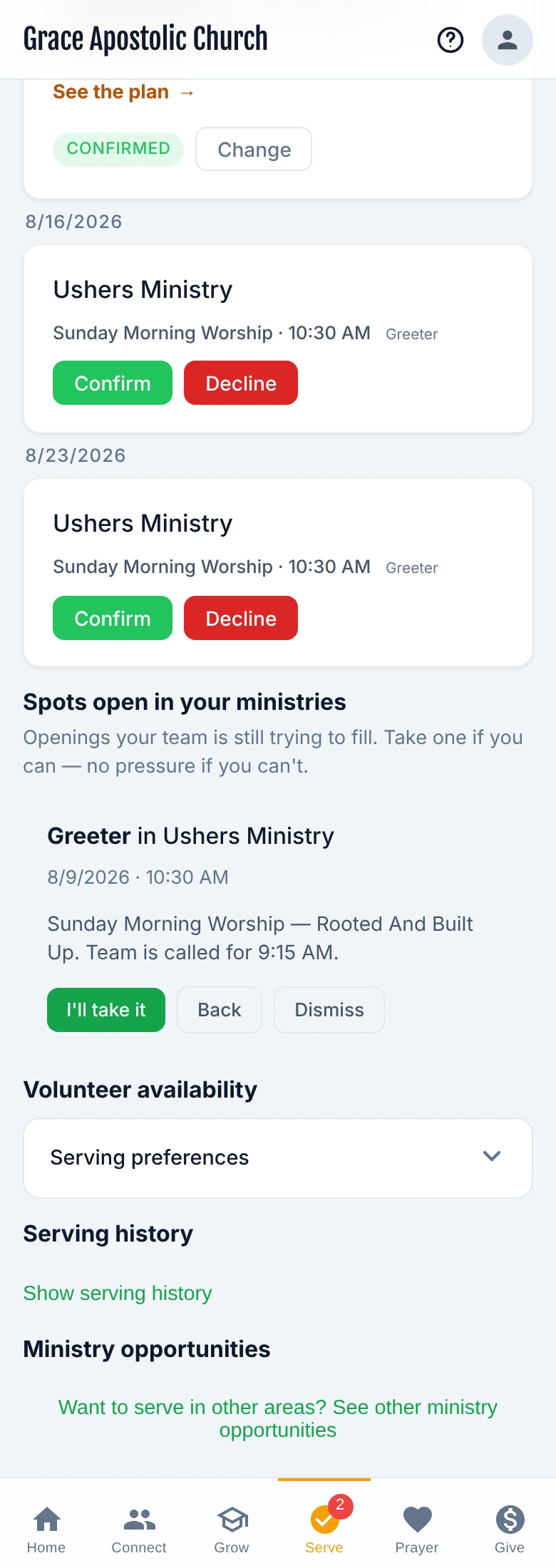
Claiming confirms them immediately and tells the ministry's leaders. Eligibility and any background-check requirement are checked again when they claim, so this is not a way around a gate — somebody who could not be scheduled into a position cannot claim it either.
The Passport app
The Passport app has the same Serve tab, with push notifications on top, so a request arrives as a notification rather than an email that gets buried.
In the app, volunteers can:
- See their upcoming assignments and confirm or decline with a reason.
- Open the published plan — the call time, who else is serving, the songs with their keys for the day, the order of the morning, and the leader's notes.
- Take an open spot in a ministry they are on.
- Express interest in ministries.
- Set their availability and manage blackout dates.
The app and the web portal now do the same things; the app adds push notifications, and the web portal needs nothing installed. Which one somebody uses is theirs to decide.
What to tell your team
Most of the resistance to a scheduling tool is people assuming they will have to sign up for something. They will not. A message that works:
You will get a text or an email when you are on the rota. Tap the link, tap yes or no. That is it — there is nothing to download and no password to make.
Common questions
I deleted the email. How do I confirm? Open the member portal from your portal link and confirm from the Serve tab, or ask your leader to resend.
Can somebody else use my link? They should not — it answers for you. Do not forward it.
I said yes and now I cannot make it. Decline it in the portal or the app, or tell your leader. The slot reopens for somebody else straight away.
Why can I not see the running order? The plan has not been published yet, or the service has been cancelled. Either way there is nothing to show until your leader publishes it.
Do I have to enter blackout dates? No, but it is the single most useful thing a volunteer can do. Dates you enter are respected automatically when the rota is built.
Next steps
- How they got asked — Scheduling Your Team.
- Everything else the portal does — Member Portal.
- The phone version — The Passport App.