Positions & Teams
A position is one job at one service, and how many people it takes — "three greeters", "one on the sound desk", "two in the kids room". Until a ministry says that out loud, nothing in Passport can tell you Sunday is short, because an empty schedule and a fully-staffed one look identical.
This is the step churches skip, and skipping it is why a schedule comes back blank.
What you can do
- Ministry leaders define what jobs their team has and how many of each it needs.
- Admins say which teams serve at which service, which becomes that service's staffing template.
- Planners see every team across every upcoming Sunday in one grid, and spot who is double-booked.
Step 1 — Define each ministry's positions
Go to Ministries, open a ministry, and use the Positions tab. Add a position for each distinct job the team does, with how many people it usually needs.
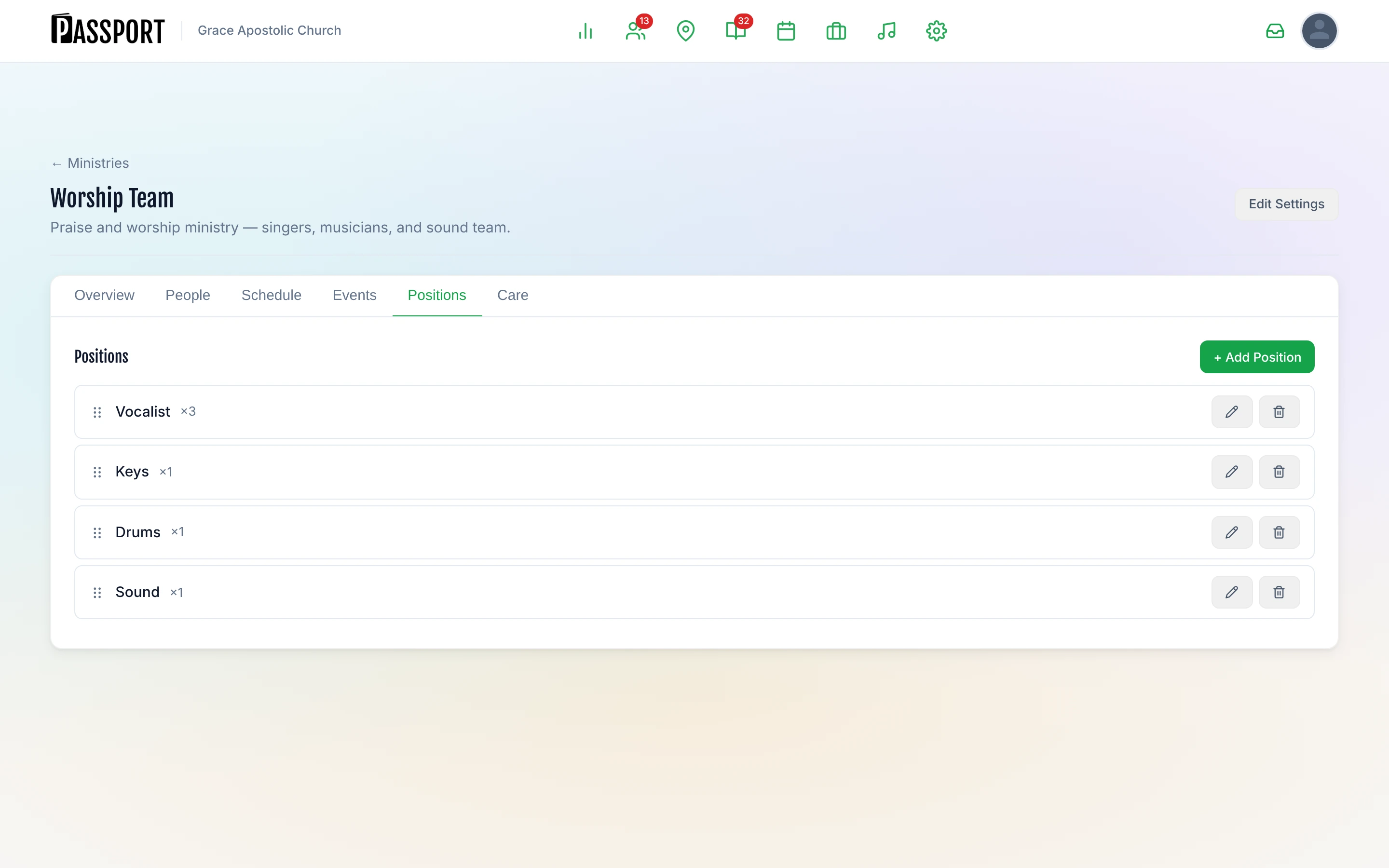
For a worship team that is usually something like:
| Position | Usually needs |
|---|---|
| Vocalist | 3 |
| Keys | 1 |
| Drums | 1 |
| Sound | 1 |
The number is a default, not a cap. It seeds what each service asks for, and any individual plan can want more or fewer — three vocalists most weeks and five at Easter, without editing the ministry.
:::warning No positions, one nameless slot A ministry with people on it but no positions is not dropped from the schedule — it gets a single position named after the ministry itself, needing one person. That keeps the link visible, but it is a placeholder, not an answer: a worship team that needs six shows as needing one, and Passport cannot tell you Sunday is short because it has been told Sunday needs one person.
The dead end that really does produce an empty roster is a service with no ministries ticked against it — see Step 2. See also Ministries & Volunteers for how people get onto a team in the first place. :::
Step 2 — Say which teams serve at which service
Go to Admin → Settings → Services and open a service. Tick the ministries that serve at it.
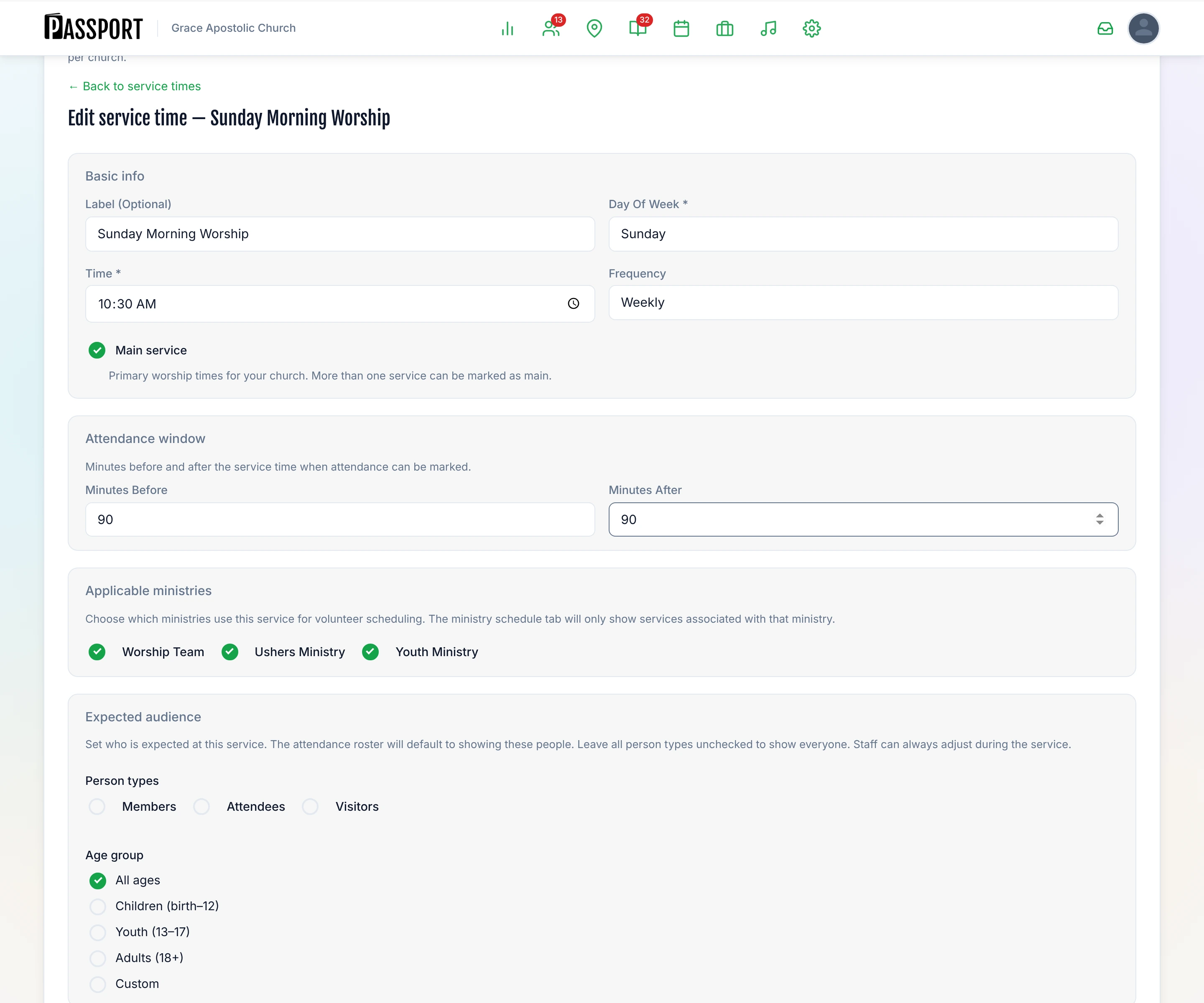
Ticking a ministry pulls in all of that ministry's positions, with their default numbers, and that combined list becomes the service's staffing template — its standing answer to "what does it take to run this service?"
A Sunday morning that draws on worship, ushers, and youth ends up with a template like this:
| Team | Position | Needed |
|---|---|---|
| Worship Team | Vocalist | 3 |
| Worship Team | Keys | 1 |
| Worship Team | Drums | 1 |
| Worship Team | Sound | 1 |
| Ushers Ministry | Greeter | 3 |
| Ushers Ministry | Usher | 2 |
| Youth Ministry | Youth Leader | 1 |
| Youth Ministry | Youth Helper | 2 |
Step 3 — Understand what a plan does with it
When you create a plan for a date, it copies the staffing template in as its own positions, once, at that moment. From then on the plan owns them.
That means editing the template does not reach back into plans that already exist. This is deliberate. Silently changing next Sunday's demand after the team has already been asked is how a schedule stops being trustworthy — somebody would be looking at a roster that quietly grew a slot nobody mentioned.
To pull template changes into an existing plan, do it explicitly: open the plan, click Edit positions at the top of the Team panel, and choose Apply staffing template. It merges in what is new and leaves alone any position that already has somebody on it — re-seeding is a way to pick up a template change, never a way to unassign people who have already said yes.
The same Edit positions mode is where a single plan's demand is changed by hand. The panel switches from listing people to listing what the plan asks for: a stepper on each position for how many it needs, a control to remove one, and Add a position for the week that needs something the ministry has no role for — a baptism helper, a second sound operator at the carol service. All of it applies to that plan alone.
Removing a position takes any assignments on it with it, because an assignment whose position no longer exists would be invisible on every screen while still counting as a commitment for the volunteer. Passport says how many people that is before and after, and does not tell them — that part is yours.
:::note Changing a position's name later Position names are snapshotted onto the plan when it is created, so renaming "Sound" to "Audio Engineer" does not rewrite what last March's plan says the team was. History stays readable. :::
The Teams matrix
Services → Teams is the grid: every position down the side, every upcoming service date across the top, and who is on each one in the cells.
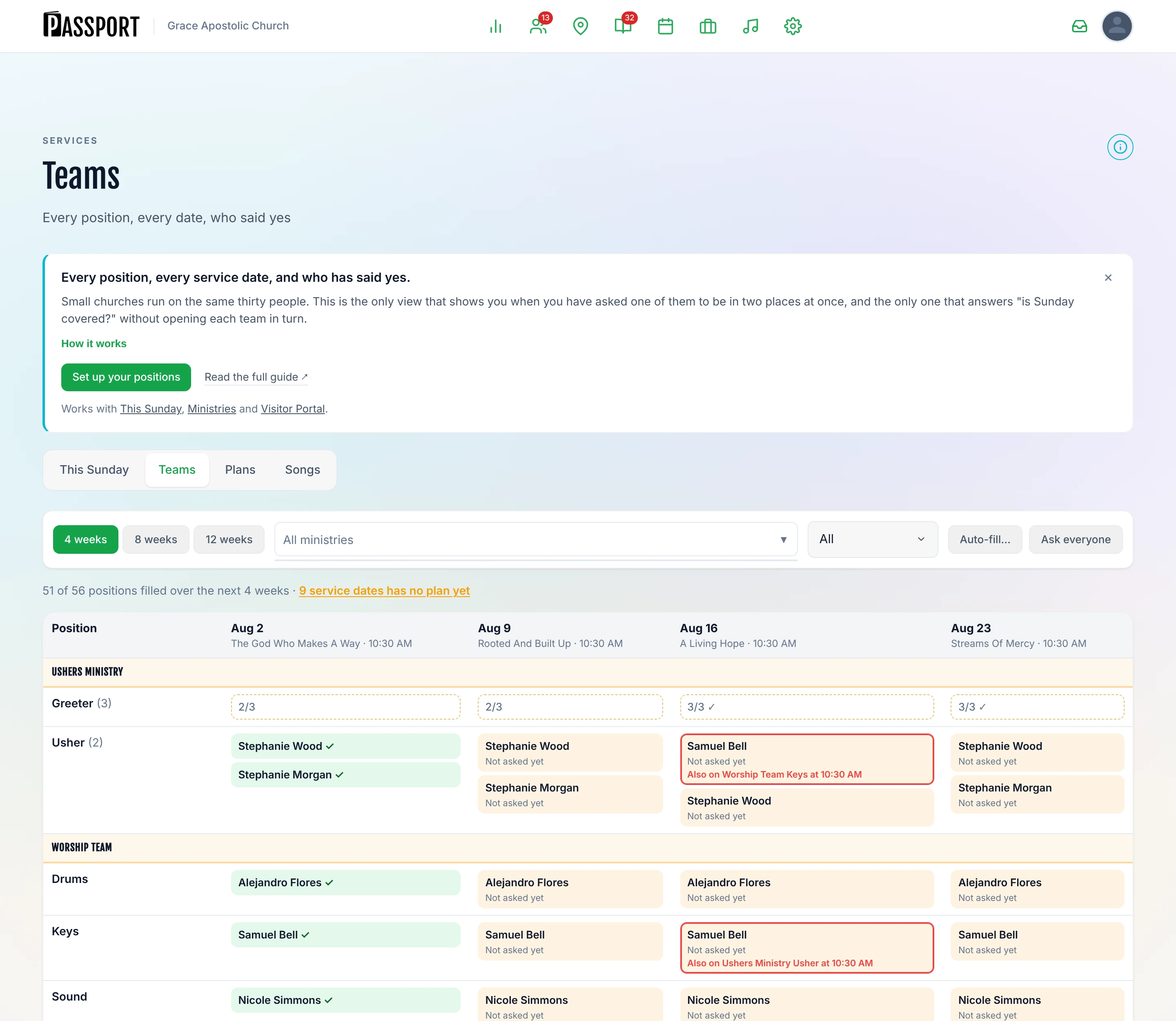
Use the week selector to widen or narrow the window. A line above the grid totals how many positions are filled across the whole window — 51 of 56 positions filled over the next 4 weeks — which is the number worth watching in the middle of the week. It counts everything in range, so switching the view to Gaps only hides the rows that are done without changing the total.
Cells tell you three things at a glance:
- A name — somebody is on it.
- An empty cell — nobody is, and that position is short.
- A name in a different state — asked but not answered, or declined. See Scheduling Your Team.
A declined assignment does not count towards a position being filled. The person is not coming, so the slot is open, and the matrix shows it as open.
Cross-ministry conflicts
At 150 people the same thirty do everything, and the person you just put on sound is already singing. The matrix flags it.
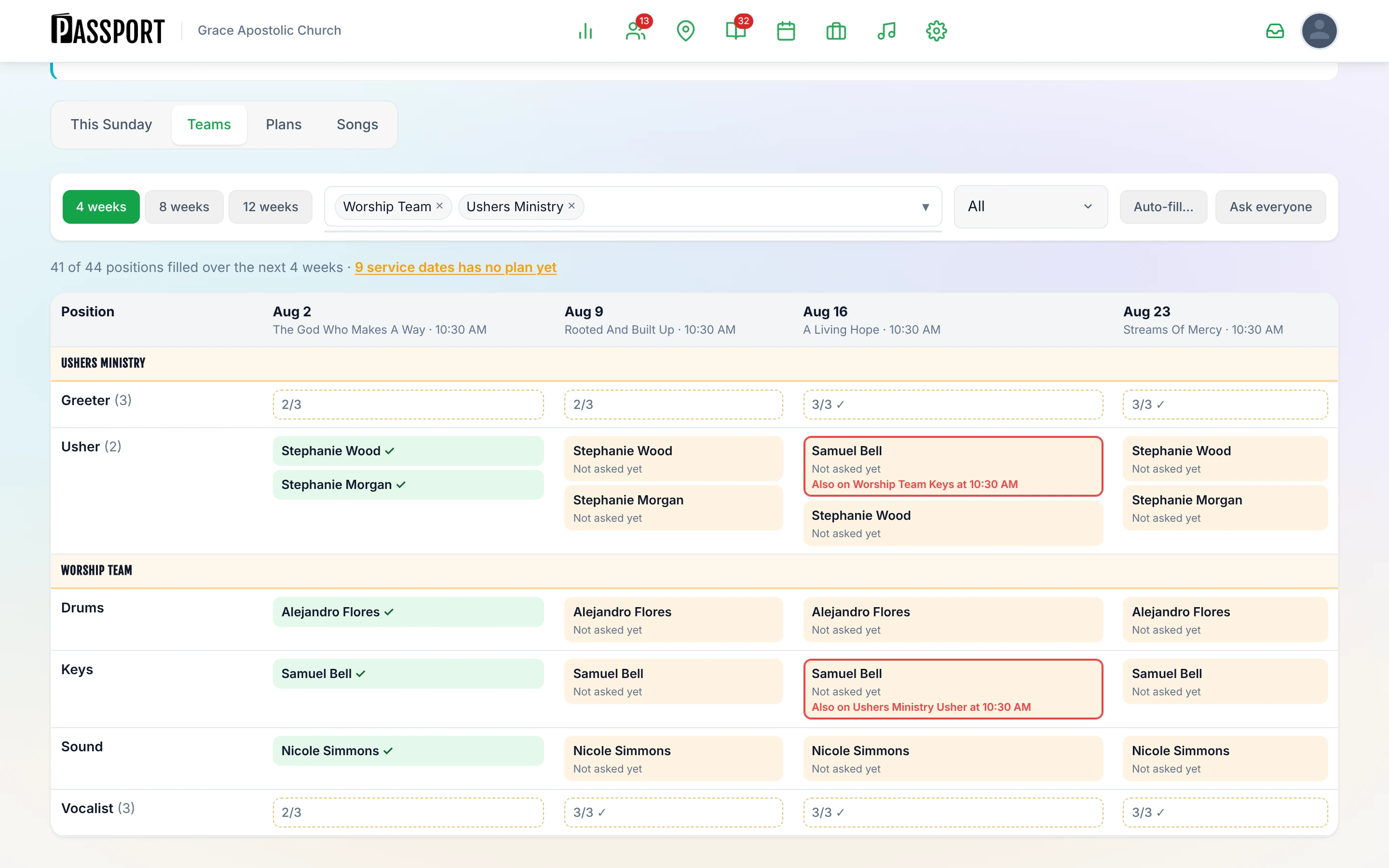
A conflict is the same person on two positions that overlap — either two positions on the same plan, or two services on the same day close enough together that they cannot realistically do both. Hover or tap the chip to see where else they are.
Two things to know about it:
- It is a warning, not a block. Somebody who plays in the band and runs sound is a real and normal arrangement at a small church, and Passport will not stop you. It just makes sure you did it on purpose.
- It is judged on the clock. Two services on the same day that are hours apart are not a conflict. Two that start within an hour and a half of each other are.
Common questions
Why does auto-fill not offer somebody who is obviously on this team? They are on the ministry as interested rather than assigned. Approve them on the ministry's People tab and they become schedulable.
Can one person hold two positions on the same service? Yes. You will get a conflict warning, which is the point — it is fine when you meant it.
I need four vocalists this week but three normally. Open the plan, click Edit positions on the Team panel, and step Vocalist up to four. The ministry's default stays at three and next week is unaffected.
Does deleting a position remove people from past plans? No. Plans keep their own copy of the positions and the names, so history is not rewritten.
Next steps
- Fill the grid — Scheduling Your Team.
- Get people onto the team first — Ministries & Volunteers.
- Build the service itself — Planning a Service.