Scheduling Your Team
Scheduling is putting names against positions and then actually asking those people. Both halves matter: a roster nobody has been asked about is a list of guesses, and you find out it was wrong at 8:55 on Sunday morning.
Passport keeps the two steps separate on purpose. You can move people around all week without anybody's phone buzzing, and then send once, when you are happy.
What you can do
- Ministry leaders fill positions by hand, or let auto-fill propose a fair rotation.
- Ministry leaders send every outstanding request in one action, and see who has not replied.
- Volunteers confirm or decline from their phone without an account.
- Volunteers take an open slot themselves, from the member portal.
Step 1 — Put names against positions
Open Services → Teams, or the roster on a plan. Click an empty cell to pick somebody.
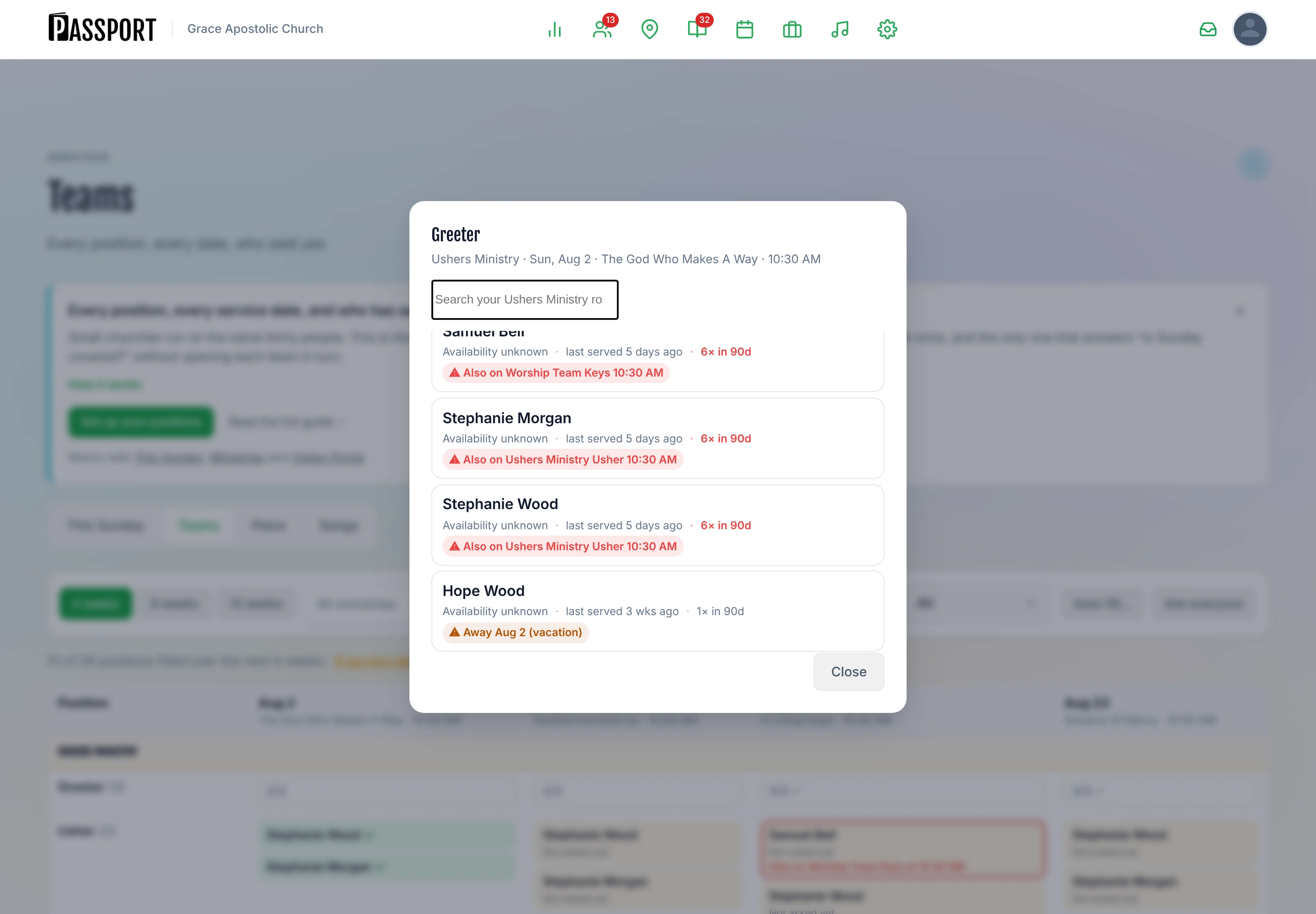
The picker only offers people who are assigned to that ministry — approved members of the team, not everyone who ever expressed interest. Under each name it tells you how long since they last served, because the person you always think of first is usually the person who served last week.
Step 2 — Let auto-fill do the first pass
Auto-fill proposes people for every open position across the dates you choose. It always shows you what it intends before it does it.
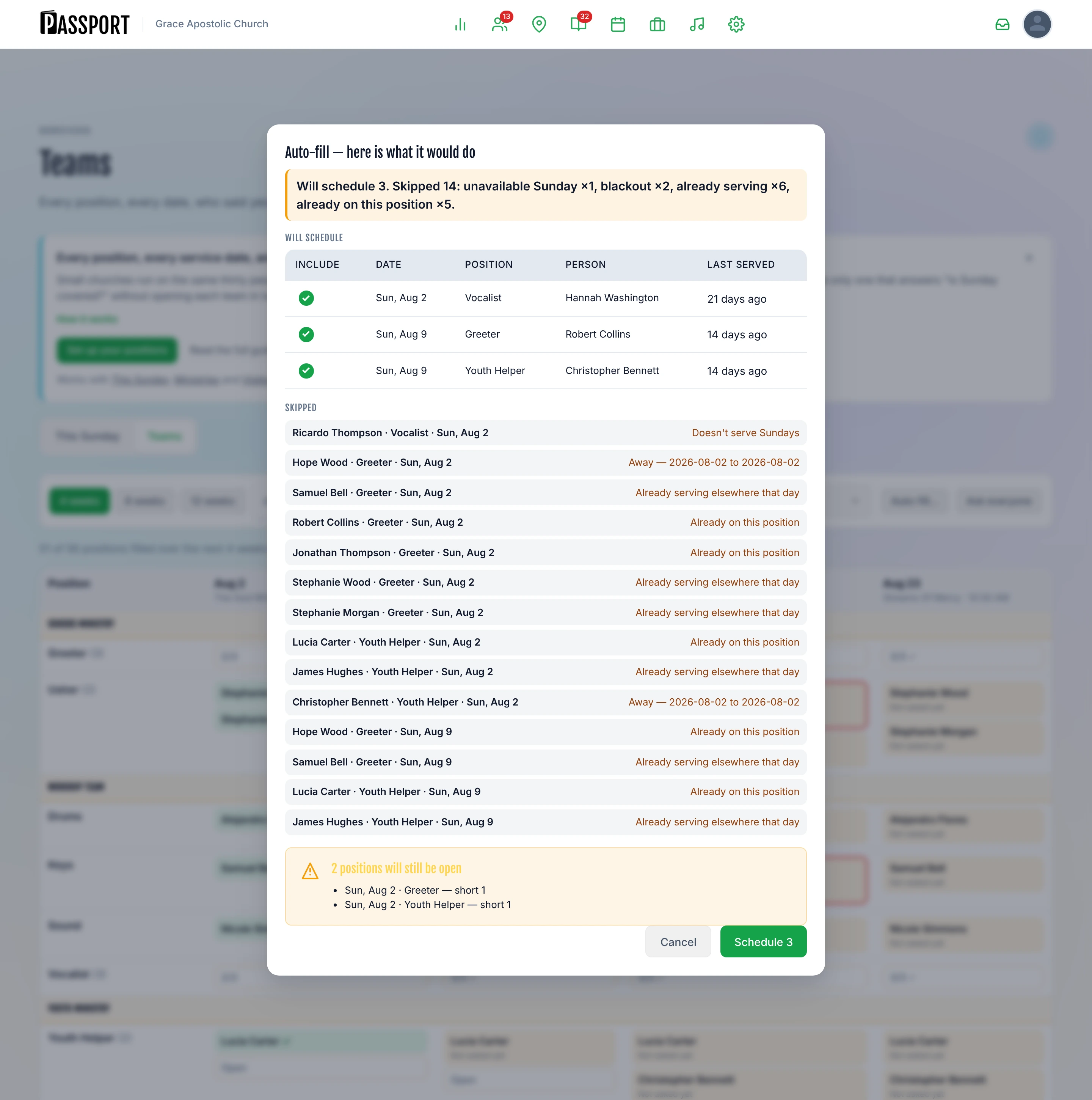
The preview opens with a one-line summary — Will schedule 12. Skipped 4: blackout ×2, already serving ×2. — and then shows the detail:
| Section | What it tells you |
|---|---|
| Will schedule | Who it wants to put where, and how long since they last served. Every row has a tick box, so you can strike out the ones you would have done differently before committing. |
| Skipped | Who it considered and passed over, with the reason against each name |
Below those, two notices appear when they apply: one counting the positions that will still be open after the run, with the dates and roles; and one headed Worth a look before you commit, carrying anything you should see — a background-check warning, for example.
It works longest-since-last-served first, so people who have not served in a while come up before people who just did, and somebody who has never served sorts first of all. Within a single run it will not put the same person on two things on the same day.
It skips people for specific, visible reasons: they are already on this position, they are already serving that day, they have a blackout date covering it, they have marked that weekday unavailable, or a background check blocks them. A background check that only flags somebody does not skip them — they are still proposed, with the warning attached, because "look at this before you commit" and "no" are different answers.
Accepting the preview does not tell anybody anything. It fills the grid. The requests are a separate step, which is the next one.
:::tip Auto-fill is a first pass, not a decision Run it, then fix the three cells you would have done differently. It is much faster than filling forty cells by hand and it does not pretend to know that the drummer's wife just had a baby. :::
Step 3 — Ask everyone
Ask everyone sends the request to everybody on the plan who has not yet been asked.
Requests go out by email, SMS, and push, depending on what each person has and what they have chosen to receive. Each one carries a link that lets them confirm or decline without signing in to anything — see For Volunteers.
:::warning Nobody is scheduled until you ask Filling the grid, accepting an auto-fill preview, and publishing the plan all leave the roster silent. Ask everyone is the only action that puts a request in front of a volunteer. If people say they never heard about it, this is the step that was missed. :::
Step 4 — Watch the replies
Every assignment is in one of four states, and the matrix shows all of them.
| State | What it means |
|---|---|
| Scheduled | Asked, no reply yet |
| Confirmed | They said yes |
| Declined | They said no, with a reason |
| Completed | The service has happened |
Declines carry a reason. A volunteer declining for themselves has to give one — the portal will not submit without it. An admin recording a decline on somebody's behalf may leave it blank, because a leader who has just been told in the car park should not have to invent a form of words to record what they already know. Those show in the matrix as Declined, no reason given.
Either way, "out of town for my niece's graduation" is a far more useful thing to see on a Tuesday than a silent empty cell, and it tells you whether to ask them again next week.
When somebody declines from their request link, the ministry's leaders are notified so the gap does not sit unnoticed.
Reminders
A daily job chases people who have been asked and have not answered. Reminders go out seven days and two days before the service.
Three conditions all have to hold, and they exist to stop the reminder becoming noise:
- The plan is published, and its team has actually been notified. Passport will never remind somebody about a shift nobody sent them.
- The person's assignment is still scheduled. Confirmed and declined people are left alone.
- The service has not already happened.
Leaders are told about unfilled positions at the two-day mark only, never at seven days. A week out, an open position is a completely normal state of affairs; a leader who gets told about it every single week stops reading the emails.
Open spots
A position is open when it needs more people than are confirmed or awaiting a reply on it. A decline reopens the slot immediately.
Open spots are counted live rather than stored, so the number is always current — there is no cached count to go stale.
Volunteers can also take an open spot themselves. In the member portal's Serve tab, people see unfilled positions for the next six weeks, restricted to the ministries they are already assigned to, and can claim one. Claiming creates a confirmed assignment and tells the ministry's leaders. The eligibility and background-check rules are re-checked on the server, so somebody cannot claim their way past a gate.
Common questions
I moved somebody from one position to another. Were they told? No. Reassigning does not currently send a notification. Tell them yourself, or remove and re-add them so they get a fresh request.
Somebody confirmed and now cannot make it. They can decline from the portal, or you can change it on the roster. Either way the slot reopens.
Can I schedule somebody who is not on the ministry? No. Add them to the ministry and approve them first — see Ministries & Volunteers.
Why did auto-fill skip almost everyone? Usually because the ministry's people are interested rather than assigned — auto-fill only draws from the assigned roster. Blackout dates and same-day double-booking account for most of the rest, and the preview names the reason against every person it passed over. Note that someone who has never set their availability is treated as available, not unavailable: an empty profile is an absence of information, not a refusal.
Does declining remove them from the team? No. It declines one date.
Next steps
- Set up what you are filling — Positions & Teams.
- Send them something worth reading — Planning a Service.
- See what they get — For Volunteers.